Platforms
Apple Vision Pro
How the full Kan Do app works in visionOS, the task overlay, appearance, and what's different from iPad.
Kan Do on Apple Vision Pro is the complete app: sidebar, boards, lists, smart lists, the notes editor, tags, settings, and iCloud sync. It's one purchase across every platform, so if you own Kan Do on iPhone or Mac it's already yours on Vision Pro.
Layout
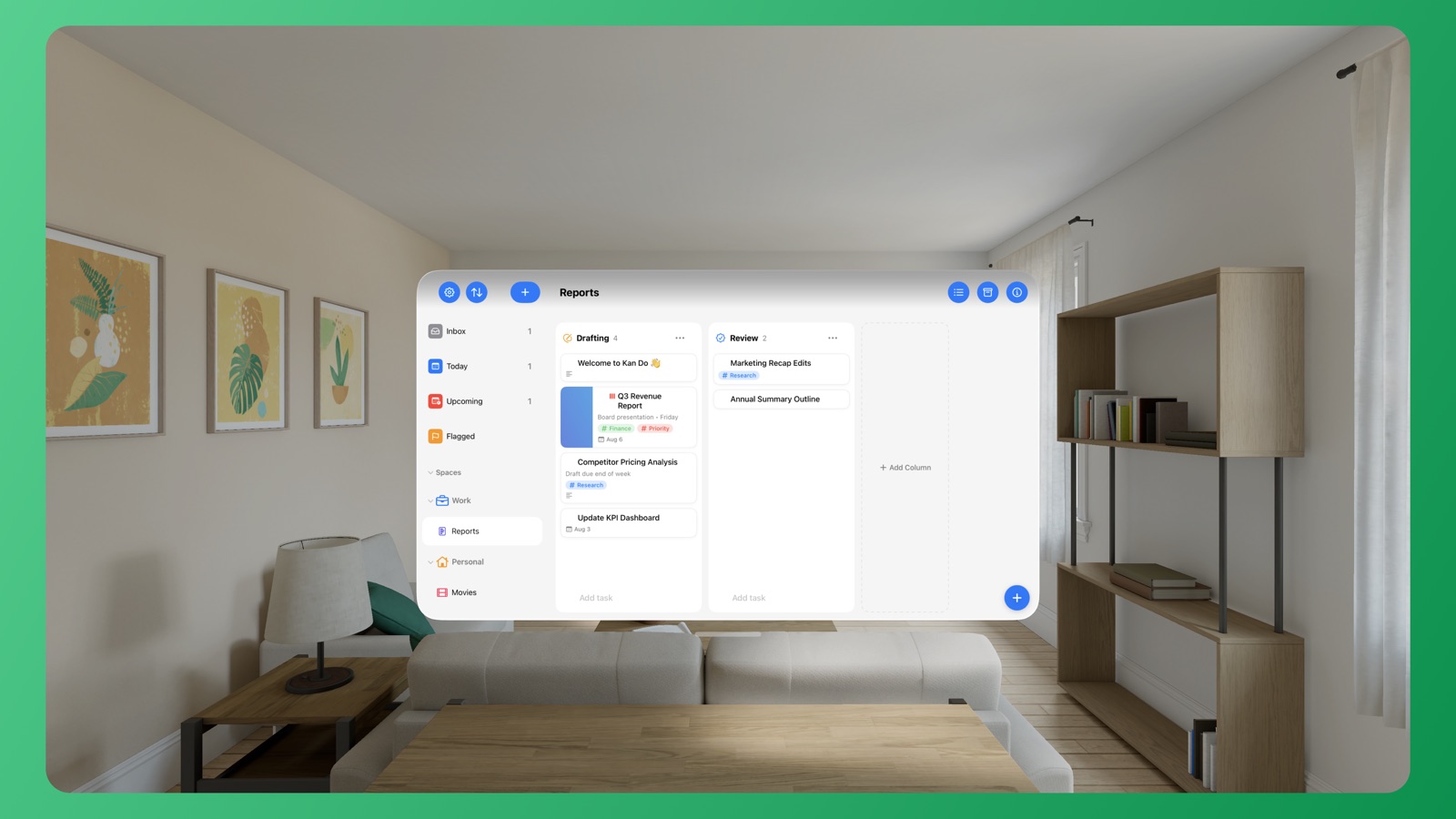
The window shows the sidebar and the board side by side, like iPad. Selecting a task slides a task pane in from the trailing edge as an overlay on top of the board. Tap the board to close it.
Toolbar
The board's controls (New Task, Archive, Project Settings) sit in the window's ornament, each as its own button. Archive and Project Settings open as popovers; the Kanban / List toggle is the first row of Project Settings.
Appearance
Settings ▸ Appearance ▸ Appearance (System, Light, Dark) changes the window and panes themselves, so Light gives you a bright window rather than dark glass. Themes and Multicolor / Single Color work as on other platforms. Alternate app icons are an iOS feature and aren't offered on Vision Pro.
Input
- Look and pinch to select cards, open menus, and press buttons.
- Pinch and drag cards between columns, and columns by their titles.
- Long pinch (hold) on a card for its context menu.
- A connected keyboard and trackpad work throughout, including the editor shortcuts.
Notes
The notes editor has the full formatting bar above the note, Write full screen, and attachments. The Drawing tool isn't available on Vision Pro; images and files are.
Sync, widgets, and Siri
Sync works the same as everywhere: turn on iCloud Sync in Settings ▸ Sync and restart. Vision Pro doesn't have Home Screen widgets or the share sheet extension, and Siri's native task understanding is an iOS 27 and macOS 27 feature, so use the app itself, or your iPhone, for those.
Recovery
The recovery screen, including Restore from Local Backup… and Re-download from iCloud, works on Vision Pro. See Backups and Recovery.
Make the window wide. With Column Width set low in Settings ▸ Typography, a whole board fits in view, and the task pane overlays only the far edge.