Organizing
List View
Show any project as a single sortable list instead of a board, and choose which view is the default.
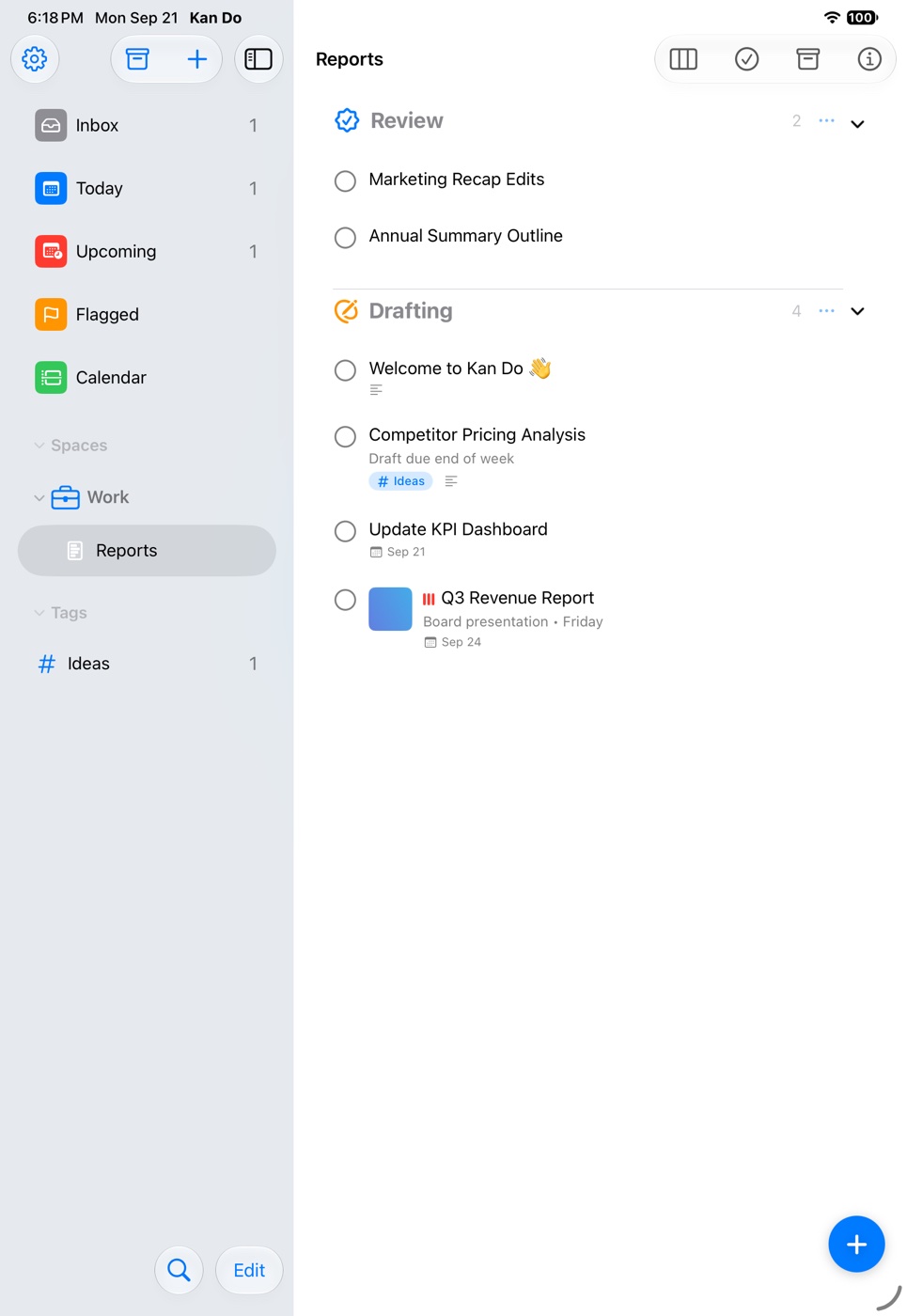
Every project can be viewed two ways: as a kanban board of columns, or as a list. The list shows the same tasks in a single scrolling column, which suits projects that are really just to-do lists, and works well on iPhone where a wide board means sideways scrolling.
Switching views
The first item in the Project Settings menu (the ⓘ in the project's toolbar) switches between the two. It shows the view you can switch to: List View while you're on the board, Kanban View while you're on the list.
The choice is remembered per project, per device. Your Groceries project can be a list on your iPhone and a board on your Mac.
Setting the default
Settings ▸ Appearance ▸ Default View chooses whether newly opened projects start as Kanban or List. Projects you've already toggled keep their own choice.
What the list shows
Tasks are grouped by column, in the board's column order, so the structure is still there. Each row shows the same things a card does: the completion circle, priority bars, flag, title, subtitle, tag chips, start and due chips, and indicators for notes, attachments, location, and subtask progress. Cover images show as a small thumbnail beside the title.
Sorting and filtering
The Sort and Filter menu offers the same options as a column:
- Sort By: Manual, Due Date, Creation Date, Priority, or Title, plus Direction.
- Filter by Tag: one tag or All Tags.
In Manual order you can drag rows to reorder them. On iPhone and iPad, press and hold a row and drag it to its new spot.
Adding tasks in a list
- Tap Add Task in the toolbar, or the + button.
- On the Mac, click the empty space under the last row to start a new task, the way Reminders does.
- Type in the Add task field under a column group to add to that column.
Completing tasks in a list
Tap the circle. With Move to Archive on for this project, the row shows its strikethrough for a beat, then fades out and the rows below slide up.
Multi-select in a list
Tap Select (or use Shift-click and ⌘-click on the Mac) to pick several rows, then use Complete, Edit Tags, or Delete from the bar, or right-click the selection for the full menu. See Moving and Multi-Select.
Use the list for capture-heavy projects like reading lists or errands, and the board for anything with real stages. Mixing the two across projects is exactly what the per-project setting is for.