Platforms
iPhone and iPad
Gestures, the task sheet and pane, the keyboard bar, Edit mode, shake to undo, iPad extras, and how Kan Do adapts to iPhone Duo.
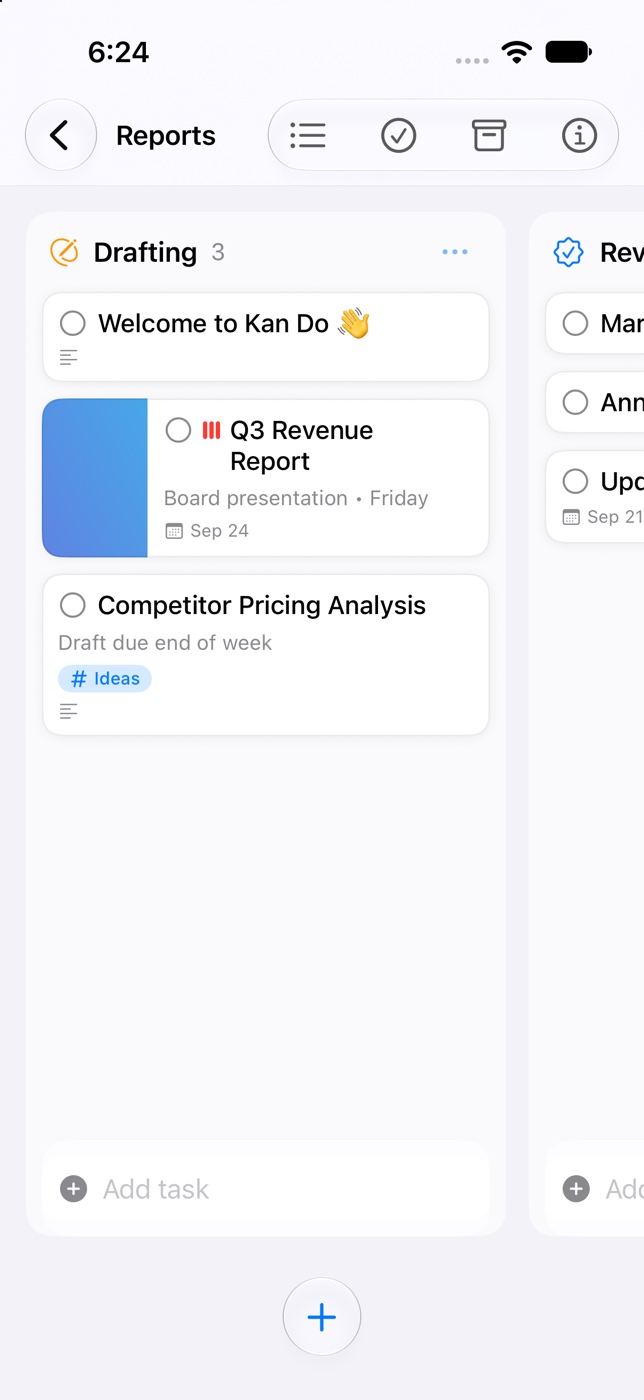
Kan Do on iPhone and iPad is the same app as on the Mac, arranged for touch. The layout follows the width of the screen: a narrow screen gets a single navigation flow and a sheet for tasks, a wide one gets the sidebar, board, and pane side by side.
iPhone
- Navigation goes sidebar ▸ board ▸ task. The back chevron at the top left returns you a level.
- New Task is a button in the bottom bar. It hides while you're selecting tasks.
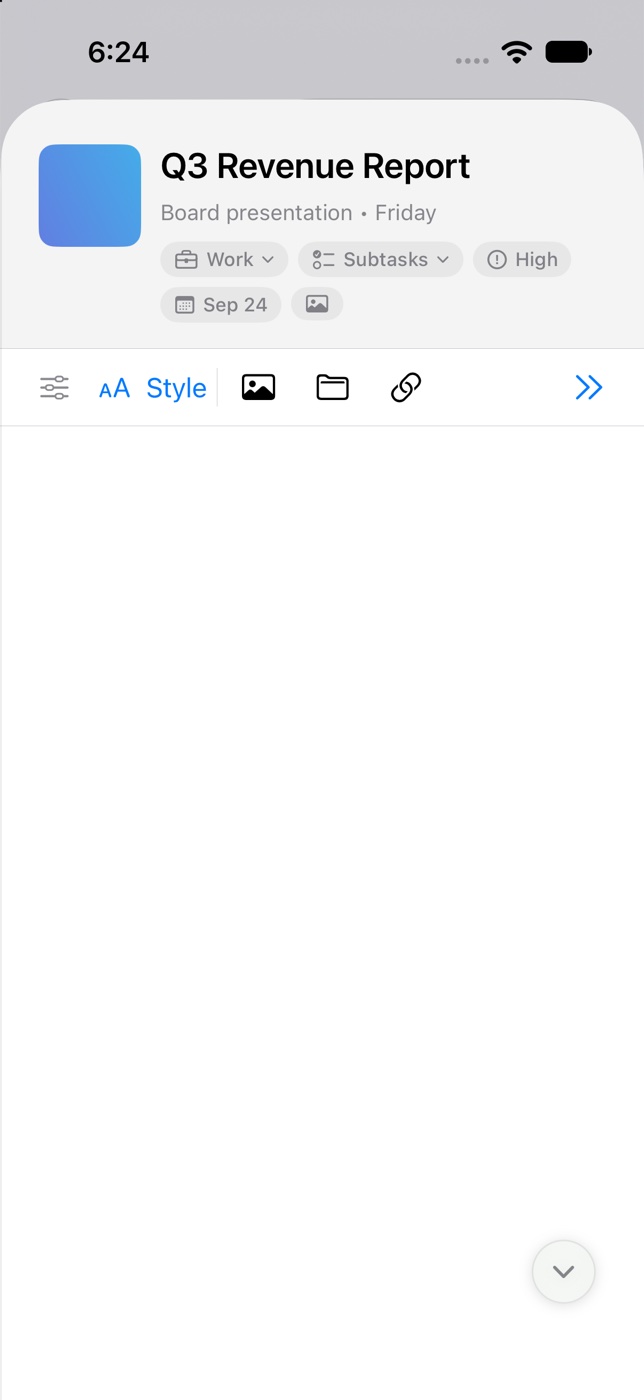
- Tapping a card opens it as a sheet titled Details. Swipe down or tap the chevron (which points down) to close it.
- Tapping empty space on a board does nothing; it doesn't create a task. That's a Mac behavior.
- Press and hold a card, column title, divider, or sidebar item for its menu, and to start a drag.
- Shake to undo completing, deleting, and duplicating. A "Task deleted" pill with an Undo button also appears for a few seconds.
- Search is the magnifying glass in the sidebar's bottom bar.
- Edit in the sidebar's bottom bar lets you reorder spaces, projects, and tags, or select several to delete.
- The Add task field accepts paste with a long press.
iPad
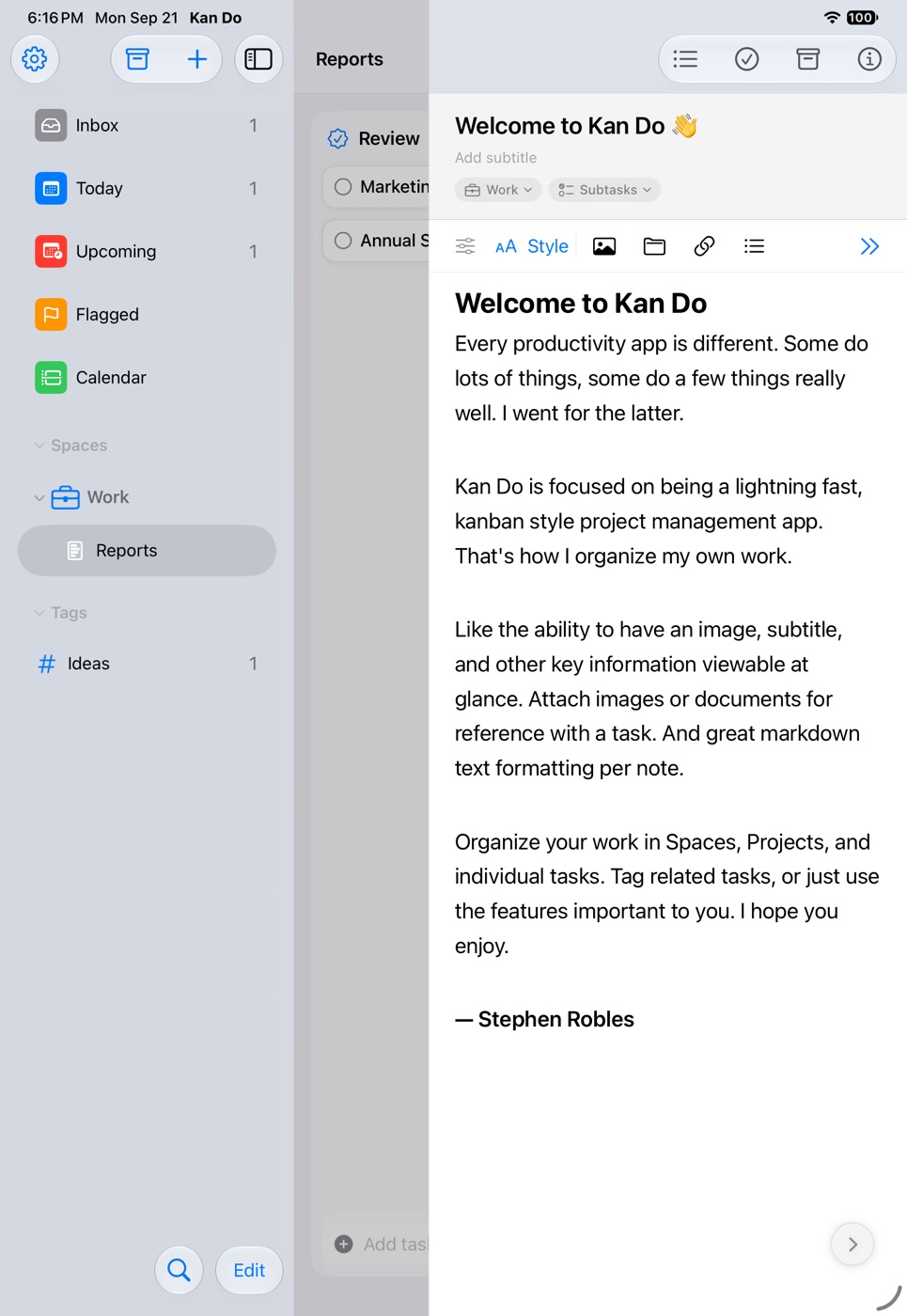
- The sidebar, board, and task pane sit side by side. The pane slides in from the right, and its close chevron points right, the direction it slides away.
- Close the pane with the chevron, by tapping empty space on the board or between columns, with a left-to-right swipe on the pane (a slightly diagonal swipe or a quick flick counts), or with a two-finger swipe on the screen or trackpad.
- Drawing in the notes editor opens a canvas; the drawing is saved as an attachment and can be reopened for edits.
- Write full screen expands the note.
- Column Width in Settings ▸ Typography applies on iPad.
- With a hardware keyboard, ⌘, opens Settings, and the editor shortcuts (⌘B, ⌘I, ⌘U, ⇧⌘X, ⌘K) work.
The keyboard bar
When you're editing a note, a bar above the keyboard holds Undo, Redo, the Aa formatting button, Link, and Hide Keyboard. Aa swaps the keyboard for a panel with every formatting tool. See The Notes Editor.
Reordering by hand
With Sort By set to Manual, press and hold a task in Today, Upcoming, Inbox, a custom smart list, a project list, or a column, then drag it to a new spot. Dividers drag the same way. The order sticks and syncs.
Notifications, Focus, and location
Reminders arrive as notifications with Mark Done and snooze buttons. Arrive and leave alerts for tasks with a location are delivered by the iPhone. See Reminders and Notifications.
Widgets, Lock Screen, Action Button
Home Screen widgets in every size, Lock Screen widgets, a Control Center button, and the Action Button all work on iPhone; iPad has the Home Screen and Lock Screen widgets. See Widgets.
App Icon
Settings ▸ Appearance ▸ Theme ▸ App Icon changes the Home Screen icon on iPhone and iPad. See Appearance.
Share sheet
Save to Kan Do in any app's share sheet. See Share Sheet.
iPhone Duo
Kan Do is ready for the foldable iPhone.
- Closed, the outer screen gets its own compact layout. The board's New Task, Select, Archive, and Project Settings buttons are separate bar items that move into the side rail.
- Open, the inner screen gets the iPad layout: the sidebar plus two full board columns, with the pane beside the board. The drawing tool, full-screen notes, the taller keyboard panel, and Column Width all follow the screen width rather than the device type, so an open Duo gets the full iPad experience.
- The board splits around the fold, and columns size themselves so the crease doesn't fall across a card.
- With a task open beside the board, the bar keeps the board's name instead of switching to "Details".
On iPad, keep the Today list open in the sidebar and a project board in the middle. Dragging a card from the board onto Inbox or a tag in the sidebar is faster than any menu.