Organizing
Spaces and Projects
How to create, edit, reorder, duplicate, export, archive, and delete spaces and projects.
A project is one board of tasks. A space is a folder for projects. That's the whole model, and both are optional at the top: a project doesn't have to live in a space, and a task doesn't have to live in a project (that's what the Inbox is for).
Spaces
Creating a space
Tap + at the top of the sidebar and choose New Space. The editor opens with the name field focused, right next to the icon.
The editor has:
- Name, typed inline next to the icon.
- Notes, a free-text field for anything you want to remember about the space. It stays in the editor and is empty until you write something.
- Color, a grid of preset colors plus Custom Color for any color you like.
- Symbol, a searchable picker of SF Symbols with Suggested and All tabs.
Editing and reordering
Right-click (Mac) or press and hold (iPhone, iPad) a space header in the sidebar for:
- Edit Space
- New Project in that space
- Move Up and Move Down to reorder spaces
On iPhone and iPad you can also tap Edit at the bottom of the sidebar and drag spaces by their handles.
Deleting a space
Deleting a space deletes every project in it, and every task in those projects. The confirmation says so. If you only want the space gone, move its projects out first by editing each project and changing its space.
Task counts for spaces
By default a space header doesn't show a number. Turn on Show Task Counts for Spaces in Settings ▸ Appearance to show the total of open tasks across its projects.
Projects
Creating a project
Any of these works:
- + ▸ New Project in the sidebar toolbar.
- Right-click a space and choose New Project in Space.
- ⌘P on the Mac.
The project editor has the same fields as a space (name, notes, color, symbol) plus a picker for which space it belongs to. A project can have No Space.
Project Settings
Once a project is open, the Project Settings button in the toolbar (the ⓘ) opens a menu with:
- List View or Kanban View, whichever you can switch to. See List View.
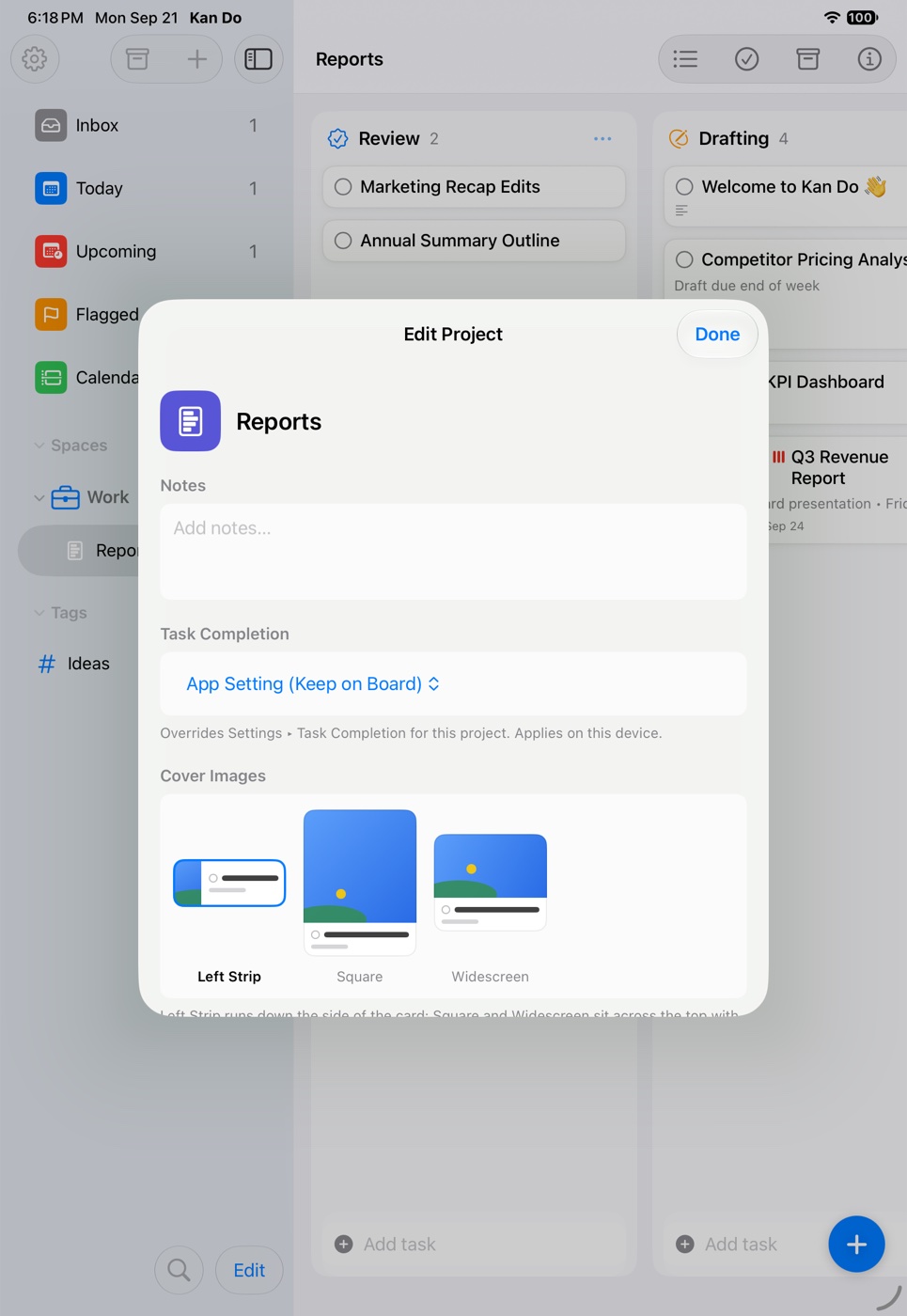
- Project Settings, which reopens the editor and adds two project-wide settings:
- Cover Images: Left Strip, Square, or Widescreen. This controls how every card on this board displays its cover image, on all your devices. See Cover Images and Attachments.
- Task Completion: App Setting, Keep on Board, or Move to Archive. A project's own choice overrides the app-wide setting. See Archive.
- Reorder Columns, a sheet where you drag columns into a new order.
The project context menu
Right-click or press and hold a project in the sidebar for:
| Item | What it does |
|---|---|
| Edit | Opens the project editor |
| New Project in Space | Creates a sibling project in the same space |
| Export… | Saves the project as a .kandoproj file. See Import and Export |
| Duplicate… | Asks for a name and creates a copy with all columns and tasks |
| Archive | Removes the project from the sidebar and puts it in the Archive |
| Delete | Deletes the project and every task in it |
Duplicating a project
Duplicate… copies every column, divider, and task, including notes, cover images, links, dates, repeat rules, and subtasks. It's a good way to turn a project you've set up carefully into a template: keep a "Template" project with the columns and starter cards you want, then duplicate it each time.
Archiving a project
Archived projects disappear from the sidebar but keep everything. Open the Archive menu at the top of the sidebar to find them under Archived Projects, and use Restore to bring one back or Delete to remove it for good.
Moving a project to another space
Edit the project and change its space in the picker. On the Mac you can also drag a project from one space to another in the sidebar.
Reordering projects
Drag projects within a space (Mac), or use Edit mode on iPhone and iPad. The order you set is the order used everywhere projects are listed, including Shortcuts' column pickers and the widget's list chooser.
Dropping tasks onto the sidebar
You can drag a task card from any board or list and drop it directly onto the sidebar:
- Drop it on a project to move it there. It lands in the same column the project's + button uses.
- Drop it on a tag to apply that tag.
- Drop it on Inbox to take it out of its project and send it back to the Inbox.
Which column does + use?
Every project has a default column for new tasks created from the + button, Siri, widgets, Shortcuts, and sidebar drops. Settings ▸ Appearance ▸ Tasks with + Button chooses between the Unsorted Column and the First Column. Typing into a specific column's Add task field always uses that column.
Keep spaces broad and projects specific. "Work" and "Home" as spaces, then one project per real thing you're working on, gives Today and Upcoming a clean mix without you having to think about it.