Getting Started
A Tour of the App
The sidebar, the board, and the task pane, and how they fit together on each device.
Kan Do is built from three panes that sit side by side on a Mac, iPad, or Vision Pro, and stack into a single navigation flow on iPhone and Apple Watch.
- The sidebar on the left lists your smart lists, spaces, projects, custom smart lists, and tags.
- The board in the middle shows the project or list you picked.
- The task pane on the right opens when you select a task, and holds its notes and details.
The sidebar
The sidebar has two parts: a set of pinned lists at the top, and three collapsible sections underneath.
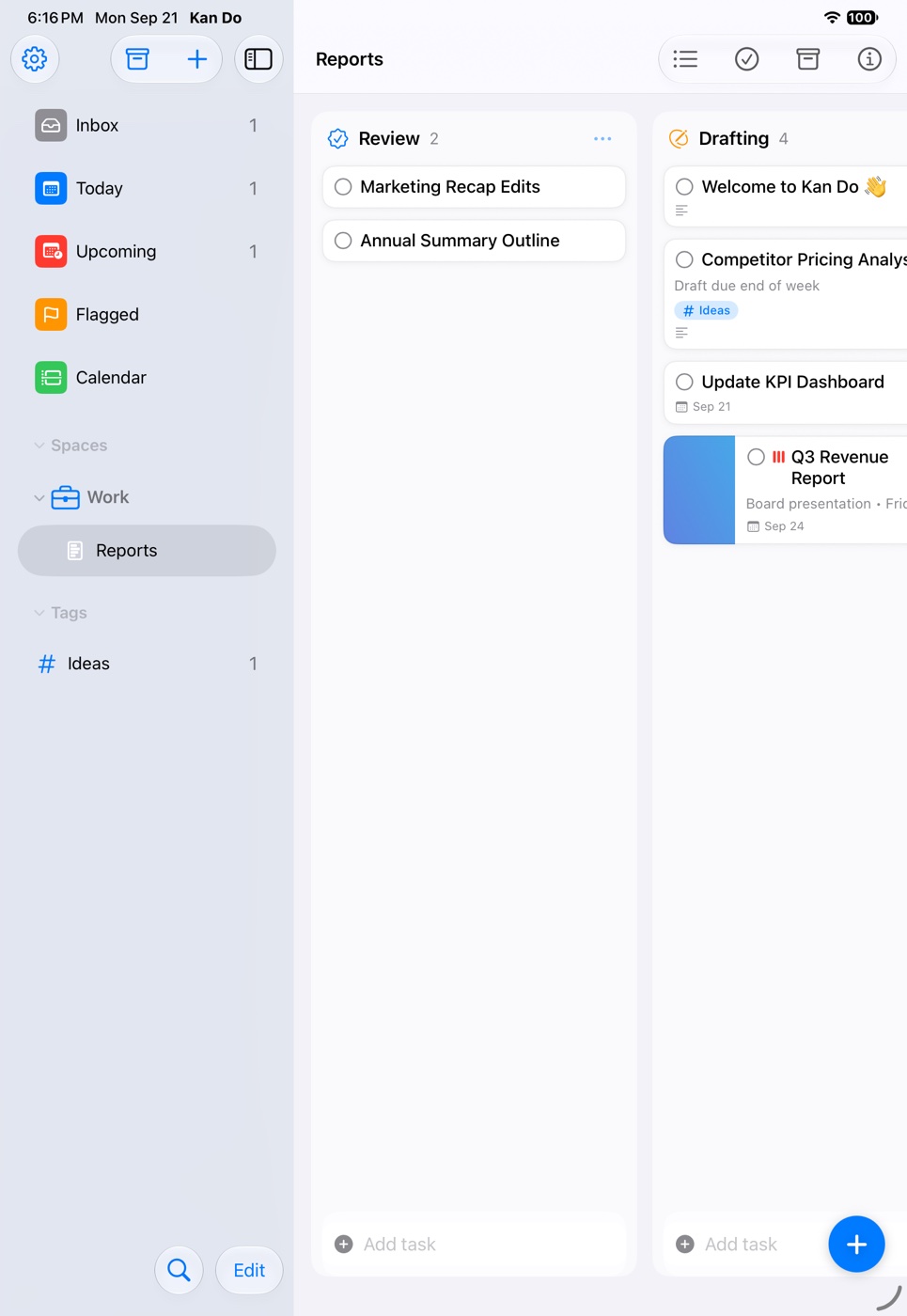
Pinned smart lists
| List | What it shows |
|---|---|
| Inbox | Tasks that aren't in any project and have no date. Your capture bucket. |
| Today | Everything due today or already overdue, plus tasks that have started. |
| Upcoming | Tasks scheduled for tomorrow or later. |
| Flagged | Every flagged task, from any project. |
| Calendar | A week or month grid of your dated tasks. |
Each list shows a count on the right. You can hide any list you don't use in Settings ▸ Appearance ▸ Sidebar Smart Lists, and hide the counts with Hide Counts in Library. See Smart Lists.
The three sections
- Spaces lists each space with its projects indented beneath it. Projects that don't belong to a space sit at the top level of the section.
- Smart Lists holds the smart lists you've made yourself. The section only appears once you've created one.
- Tags lists your tags. Tags with nested tags inside them show a chevron you can fold and unfold.
Tap the chevron next to a section title to collapse it. You can put the three sections in any order you like in Settings ▸ Appearance ▸ Sidebar Order.
The + menu
The + button at the top of the sidebar creates things:
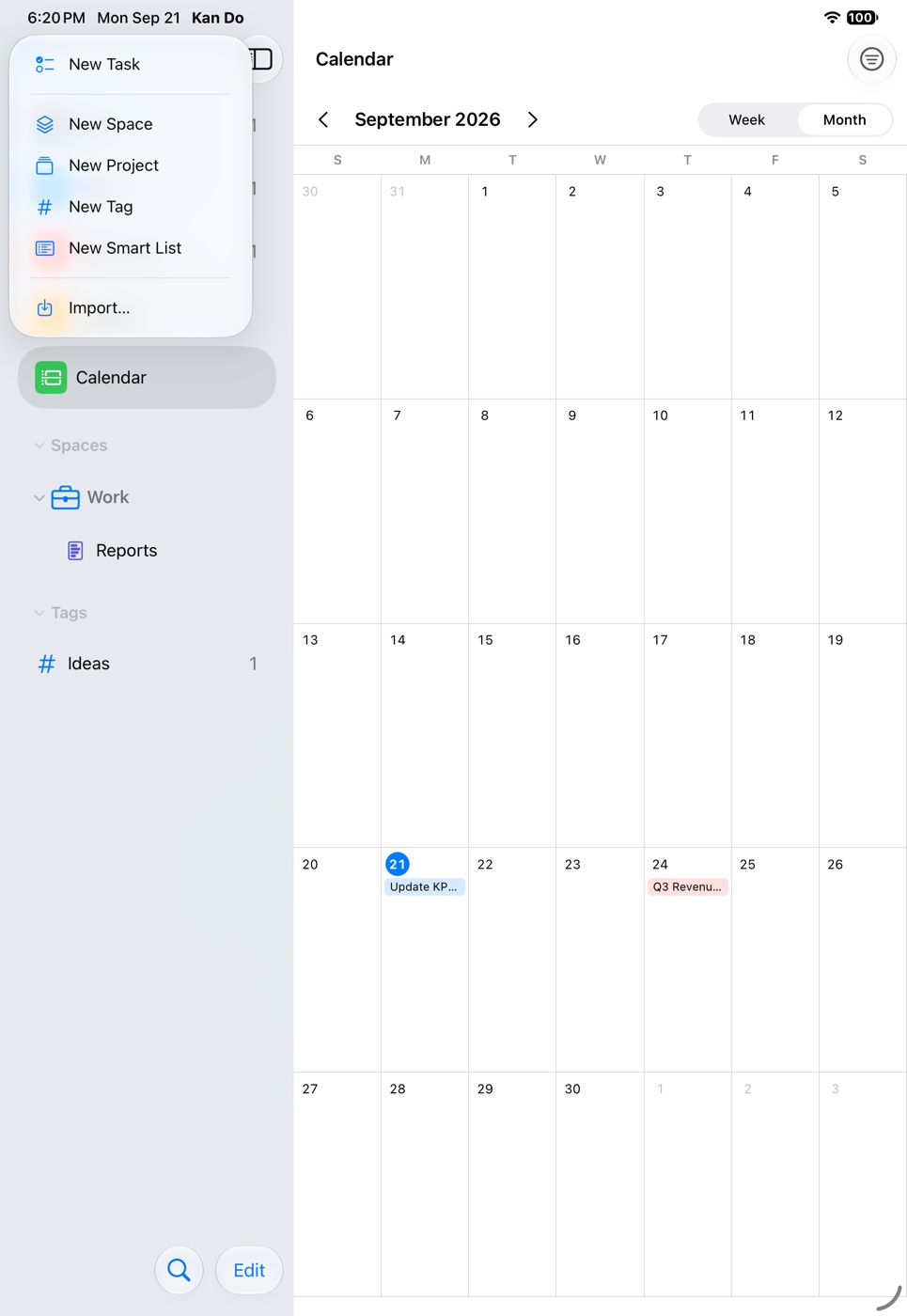
- New Task adds a task to the Inbox.
- New Space, New Project, New Tag, and New Smart List open the editor for that item.
- Import… brings tasks in from Apple Reminders or a Kan Do project file.
The Archive menu
The box icon next to + opens the archive of projects and tasks you've put away. Each row has Restore and Delete. See Archive.
Edit mode
On iPhone and iPad, Edit at the bottom of the sidebar lets you reorder spaces, projects, and tags by dragging their handles, or select several and Delete them at once. On the Mac, drag items directly.
Deleting a space deletes all of its projects. Deleting a project deletes all of its tasks. Deleting a tag removes it, and any tags nested under it, from every task. Kan Do confirms before it does any of this, and you can shake to undo on iPhone or press ⌘Z on the Mac right afterward.
Select a project and its board fills the middle pane. Each column is a vertical stack of cards with an Add task field at the bottom. Drag cards between columns, drag columns by their titles to reorder them, and use the … button on a column for sorting, filtering, and more. Every project can also be shown as a single list instead of a board, from the top of the Project Settings menu.
The board's toolbar holds:
- New Task, the + that adds a task to the project's default column.
- Select Tasks, which turns on multi-select so you can complete, tag, move, or delete several cards at once.
- The project's Archive, showing archived tasks and columns for that project only.
- Project Settings, a menu with the Kanban / List view toggle, the project editor (name, icon, color, cover image style, task completion behavior), and Reorder Columns.
Boards and Columns covers all of this in depth.
The task pane
Selecting a card opens it. The pane has a title, a subtitle line, a Details area for dates, priority, flag, repeat, tags, links, location, attachments, and board location, and below that the notes editor.
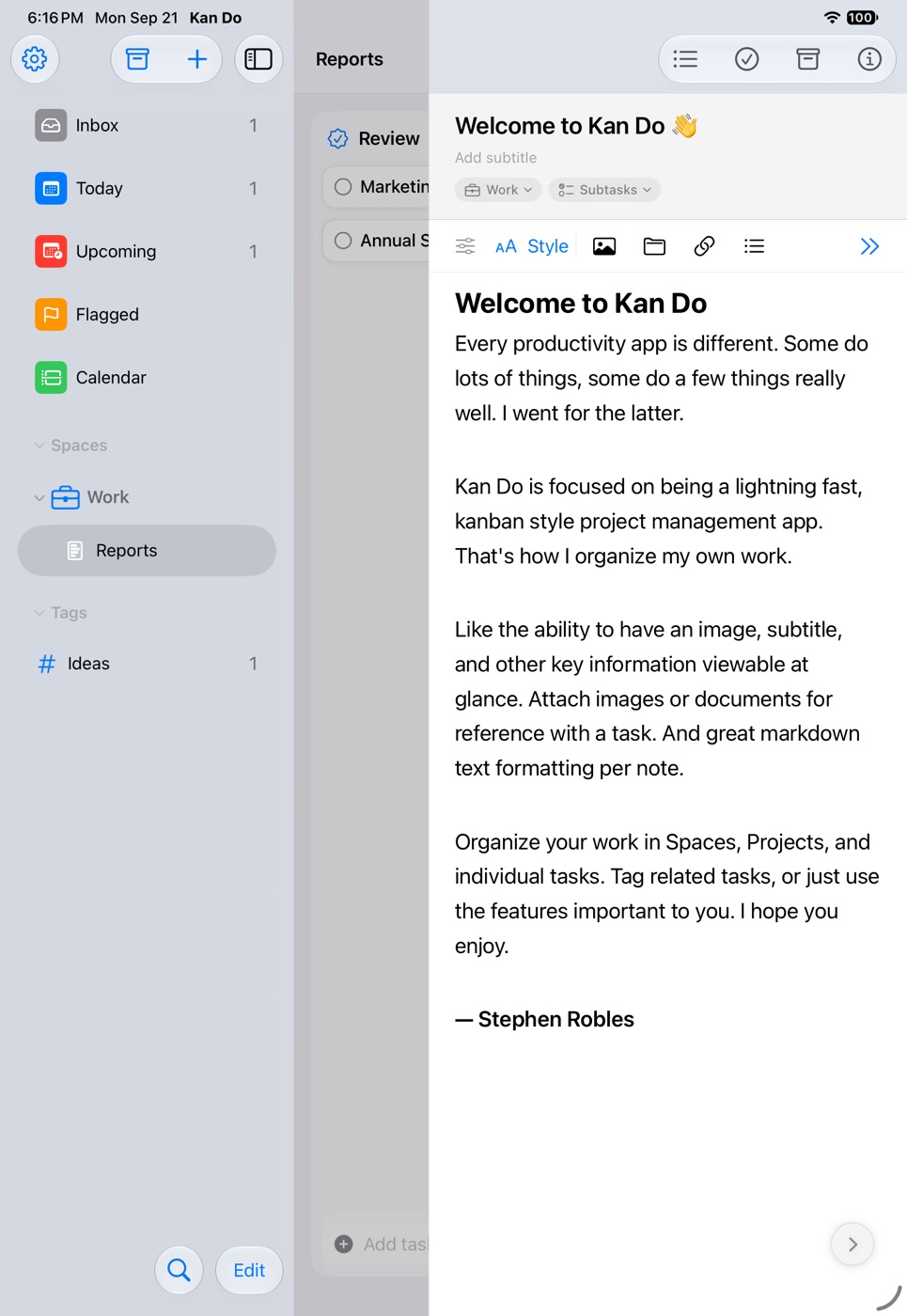
- On the Mac, the pane sits on the right and can be resized by dragging its left edge. Double-click a card to open its note in its own window.
- On iPad and an open iPhone Duo, the pane slides in from the right. Tap empty space on the board, swipe it away, or use the chevron to close it.
- On iPhone, the pane is a sheet. Swipe down or tap the chevron to close it.
- On Vision Pro, the pane is an overlay on the trailing edge. Tap the board to close it.
Where Settings lives
- Mac: Kan Do ▸ Settings… in the menu bar, or ⌘,
- iPhone, iPad, Vision Pro: the gear at the top of the sidebar.
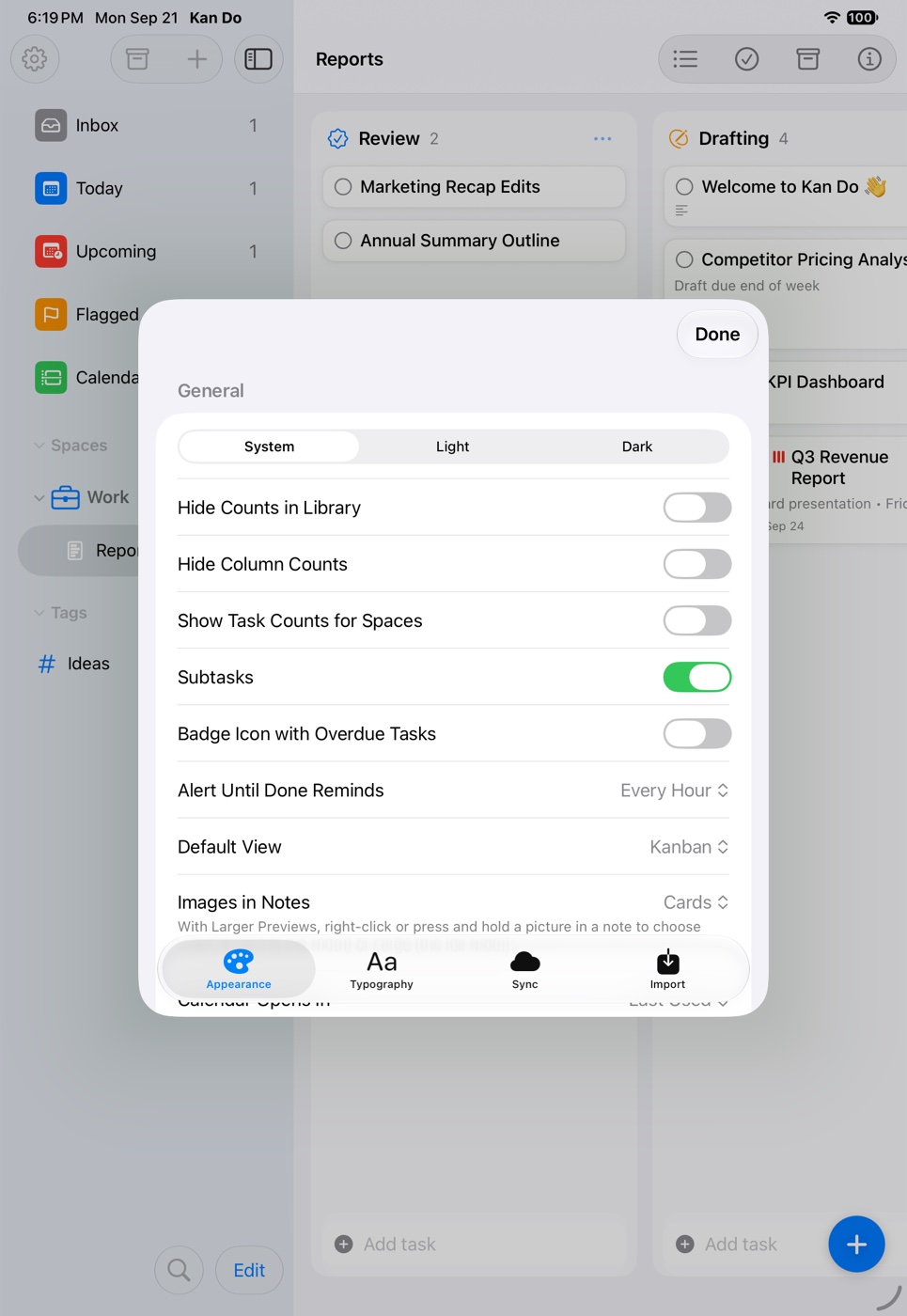
Settings has five tabs: Appearance, Typography, Sync, Import, and, on the Mac only, Connector. Every option is listed in the Settings Reference.
What opens at launch
By default Kan Do reopens whatever you were looking at last. Settings ▸ Appearance ▸ Open at Launch can change that to the main navigation (the sidebar with nothing selected), any smart list, or any project.