Platforms
Kan Do on the Mac
Menu bar commands, windows, the resizable task pane, zoom, drag and drop from other apps, and Mac-only behaviors.
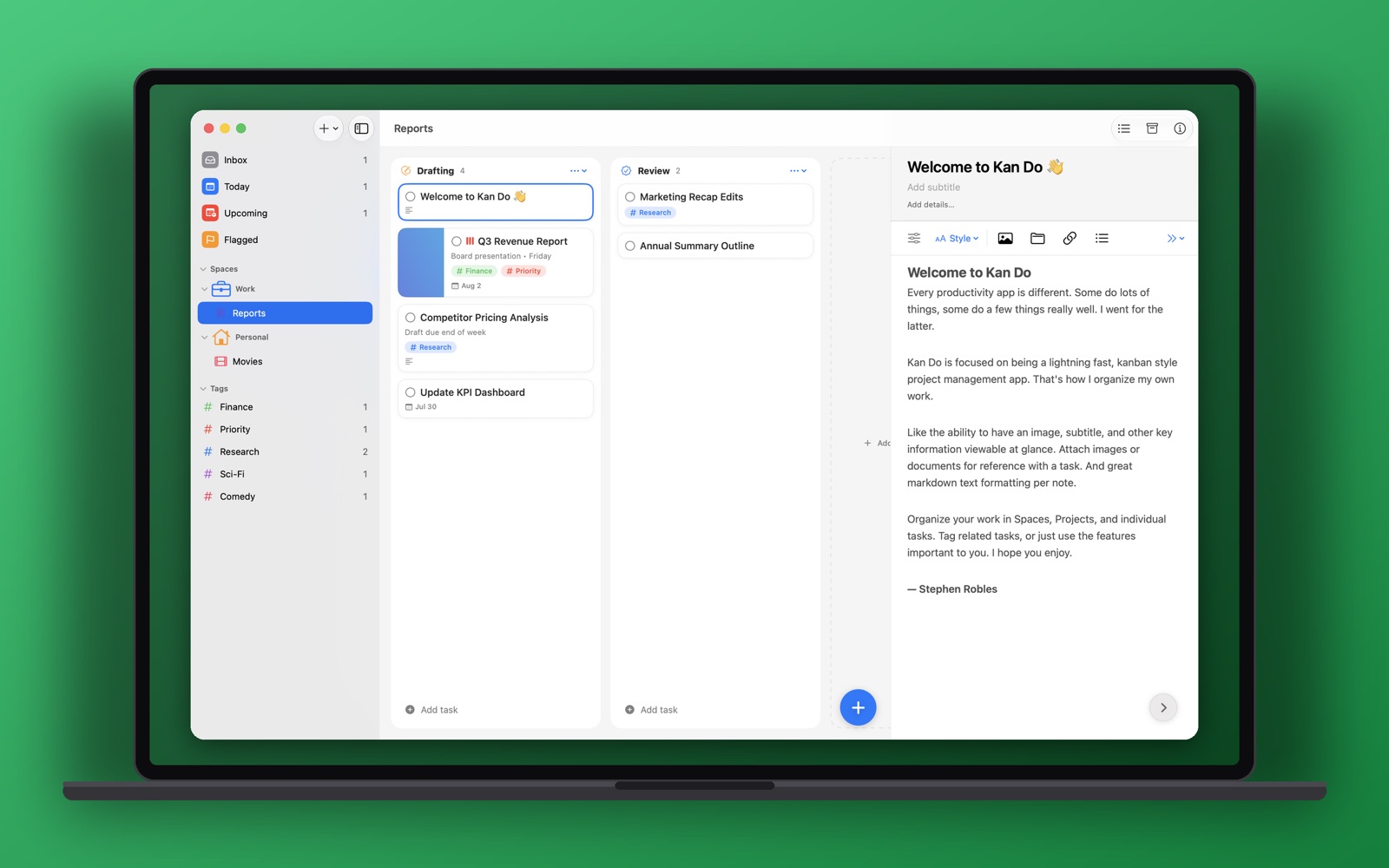
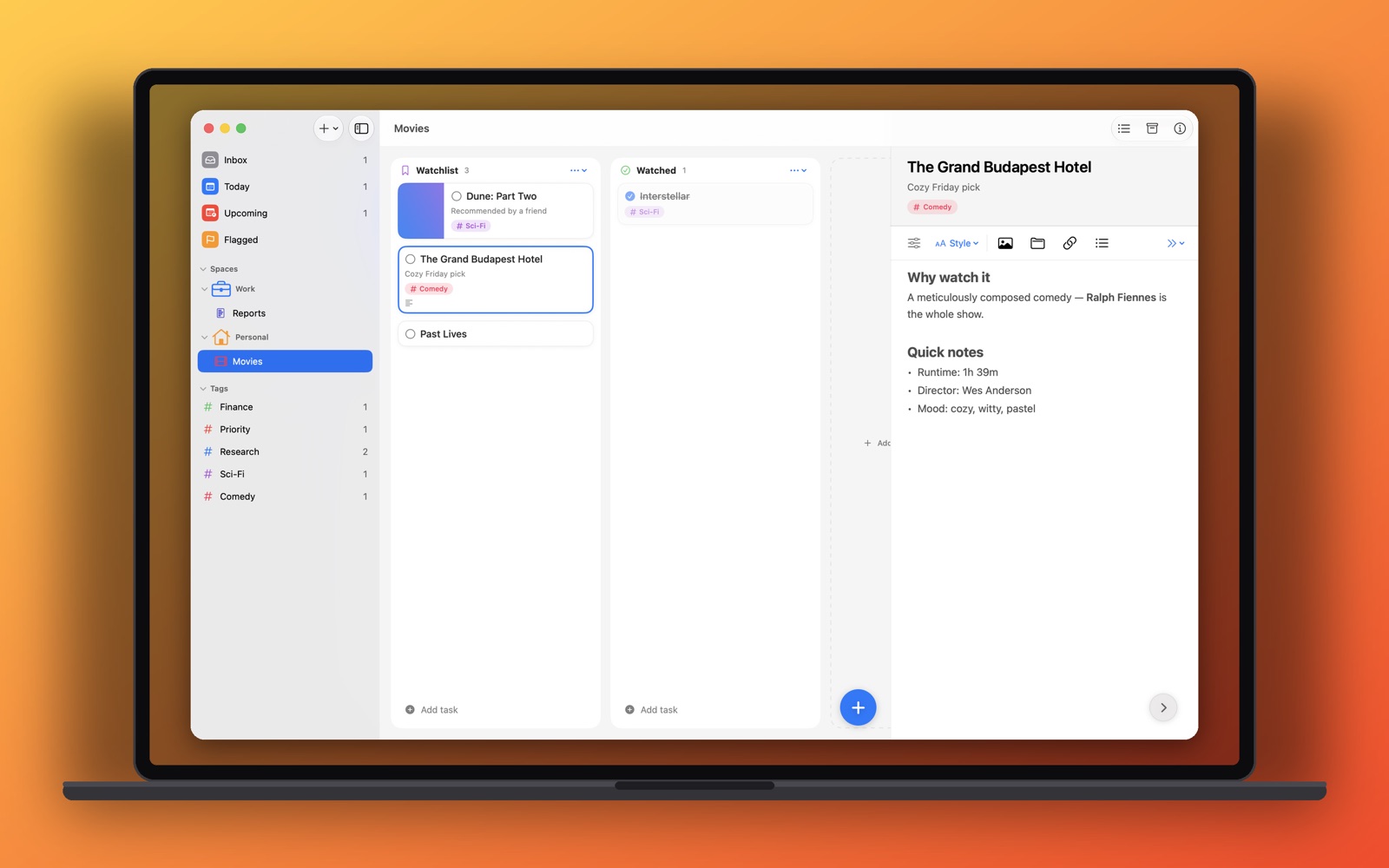
The Mac app is the full Kan Do with a menu bar, real windows, and a few behaviors that only make sense with a pointer and a keyboard.
The menu bar
| Menu | Commands |
|---|---|
| Kan Do | Settings… (⌘,) |
| File | New Task (⌘N), New Project (⌘P), New Column (⇧⌘C), Import Project…, Export Project…, Print Note… (⇧⌘P) |
| Edit | Cut, Copy, Paste, Paste and Match Style (⌥⇧⌘V), Delete, Select All, Undo, Redo |
| Task | Open Task (⌘E), Task Details (⌘I), Duplicate Task (⌘D), Delete Task (⌘⌫) |
| View | Zoom In (⌘+), Zoom Out (⌘−), Actual Size (⌘0) |
| Window | Main Window (⇧⌘1) |
The full shortcut list, including note formatting, is on Keyboard Shortcuts.
Windows
- The main window opens at a comfortable default size and remembers where you leave it.
- Window ▸ Main Window (⇧⌘1) brings it back after you've closed it.
- Double-click a card to open its note in a standalone Task window. Handy for keeping a spec open beside the board.
kando://links always land in the existing main window.
The task pane
The pane on the right is resizable: drag its left edge. It stays between 320 and 720 points and never squeezes the board below 300 points, and the width you set persists. Dismiss the pane by dragging it to the right, with a two-finger trackpad swipe, or with Escape when the title or subtitle is focused.
Settings is a window
⌘, opens a proper Settings window with the Appearance, Typography, Sync, Import, and Connector tabs. The Connector tab exists only on the Mac. See AI Assistants (MCP).
Zoom
⌘+ and ⌘− zoom the whole window between 0.6× and 1.8×, on top of the Typography sliders. ⌘0 returns to actual size.
Clicking and selecting
- The first click on a task's title or subtitle places the cursor where you clicked.
- Shift-click selects a range of cards, ⌘-click toggles one, clicking empty space clears the selection.
- Click in the empty space under a column's cards, or under the last row of a list, to start a new task there. This is a Mac-only behavior.
- Escape in the Add task field discards what was typed. Escape while naming a brand-new task backs out of creating it.
Dragging cards and columns
Cards drag between and within columns from the moment the app opens, and columns drag by their titles. If a drag ever seems dead on macOS 27, make sure you're on Kan Do 1.5 build 143 or later: earlier builds needed a task opened once before drags would start.
Drag and drop from other apps
- Drag a file or image from the Finder into a note and it becomes an attachment.
- Drag an email out of Mail into a note and it becomes a card showing the subject. Clicking the card opens the message in Mail, and a link to it is added to the task's Links.
- Paste a picture copied from Preview, Safari, or a screenshot tool into a note.
Widgets on the desktop
The Tasks widget is available on the Mac desktop and in Notification Center in Small, Medium, Large, and Extra Large sizes. See Widgets.
Siri and Spotlight
Siri on macOS 27 understands Kan Do tasks natively, and Spotlight finds tasks, projects, and columns. See Siri and Spotlight and Links.
Undo
⌘Z undoes completing, deleting, and duplicating tasks, and works inside notes as you'd expect.
Notifications
The Mac app schedules its own reminders. If you rely on notifications while Kan Do isn't running on the Mac, the iPhone or iPad that has the task will still alert.
Set Column Width in Settings ▸ Typography to fit four or five columns in your window, then use ⌘+ when you want to focus on one board at a time.