
Tasks
Moving and Multi-Select
Move to, the destination picker, dragging onto the sidebar, and acting on several tasks at once.
Moving a single task
There are four ways to move a task to another column, project, or the Inbox:
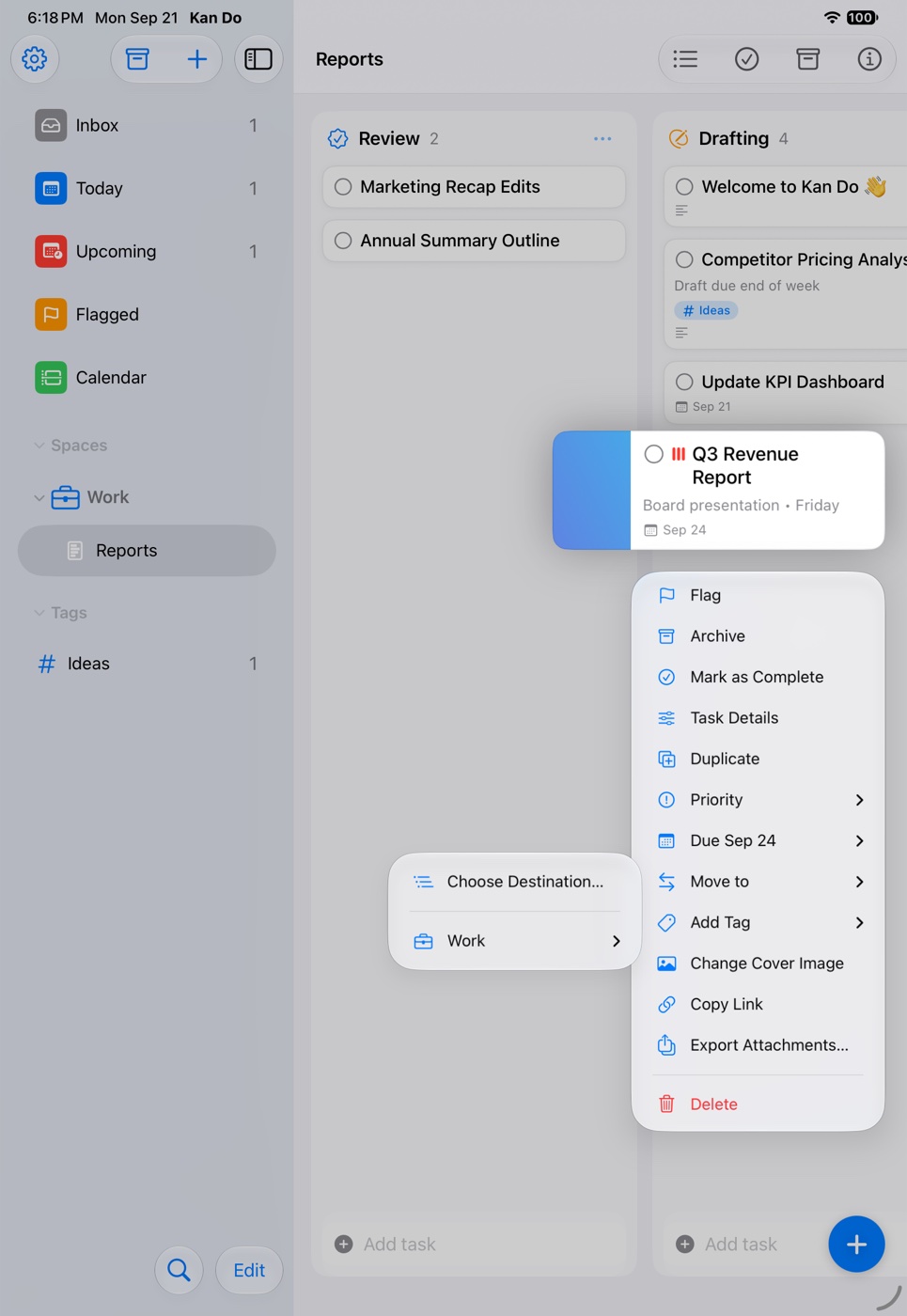
- Drag the card to another column on the same board.
- Drag the card onto the sidebar: onto a project (it lands in that project's default column), onto Inbox, or onto a tag to apply the tag instead of moving.
- Move to in the card's context menu, a submenu of spaces, projects, and columns with Inbox at the top.
- Board Location in the task's details, which opens the same choices.
The destination picker
When you have many spaces, the Move to submenu starts with Choose Destination…, which opens a full-screen picker with Inbox, every project grouped by space, and a Search projects and spaces field. Pick a project, then a column, and the task moves and the picker closes. Cancel leaves everything as it was.
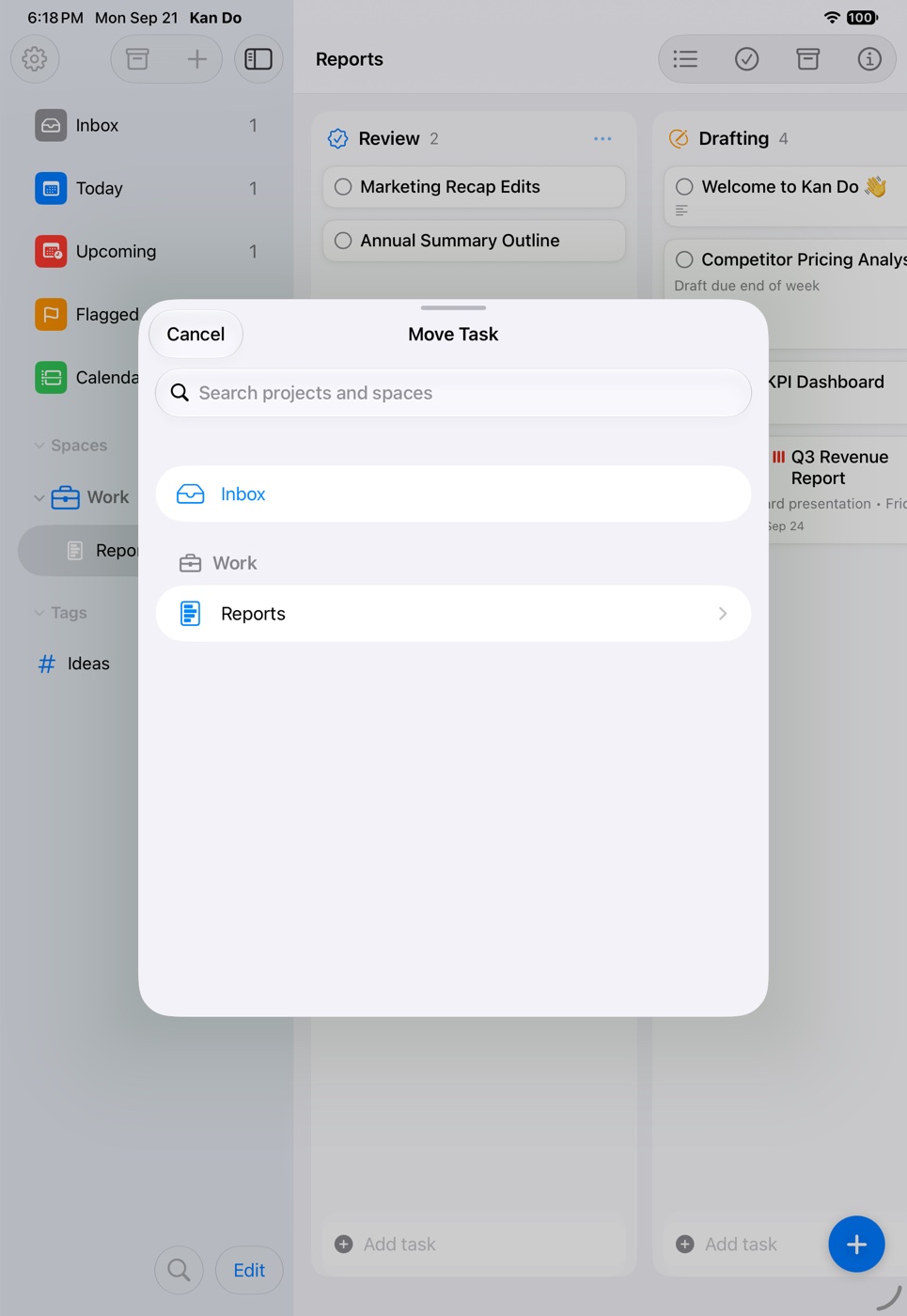
At larger accessibility text sizes on iPhone and iPad, the item reads Move to… and always opens the picker, since a nested submenu can only show a few rows there.
Selecting several tasks
Mac: Shift-click for a range, ⌘-click to add or remove single cards, click empty space to clear. ⌘A selects all in the current view.
iPhone, iPad, Vision Pro: tap Select Tasks (boards) or Select (lists) in the toolbar, then tap cards. The toolbar button becomes Done Selecting / Done. On iPhone the New Task button hides while selecting.
Once you have a selection, a bar shows "N selected" with Complete, Edit Tags, and Delete. Right-click or press and hold any selected card for the full menu, titled "N Tasks Selected":
| Item | What it does |
|---|---|
| Mark as Complete | Completes all selected tasks |
| Flag / Unflag | Flags or unflags all of them |
| Priority | Sets the same priority on all |
| Due Date | Today, Tomorrow, Next Week, Pick Date & Time…, or Remove Due Date |
| Move to | Moves all to one column or the Inbox |
| Add Tag | Applies a tag to all |
| Export Attachments… | Exports every selected task's cover and attachments, prefixed with the task name |
| Delete | Deletes all of them |
Edit Tags in the selection bar opens the tag sheet titled "Tags (N Tasks)", where a tag can be applied to or removed from every selected task at once.
Multi-select in smart lists
Today, Upcoming, Flagged, Inbox, and custom smart lists all support Select with the same bar and menu. Because those lists mix projects, Move to is a quick way to file a batch of Inbox captures into the right boards.
Shortcuts and selection
The Get Selected Tasks Shortcuts action returns whatever is selected in Kan Do right now, so a shortcut can act on the tasks you just picked. See Shortcuts.
Undo
Bulk complete, delete, and duplicate can be undone with ⌘Z on the Mac or shake to undo on iPhone and iPad.
Sunday filing: open the Inbox, tap Select, pick everything that belongs to one project, and use Move to. Repeat per project. Two minutes and the Inbox is empty.