Tasks
Cover Images and Attachments
Adding a cover to a card, choosing Left Strip, Square, or Widescreen per project, attaching images and files, previews, and exporting attachments.
A task can carry pictures and files in two ways: a cover image that shows on the card, and attachments that live in the task's note and attachment list.
Cover images
Adding a cover
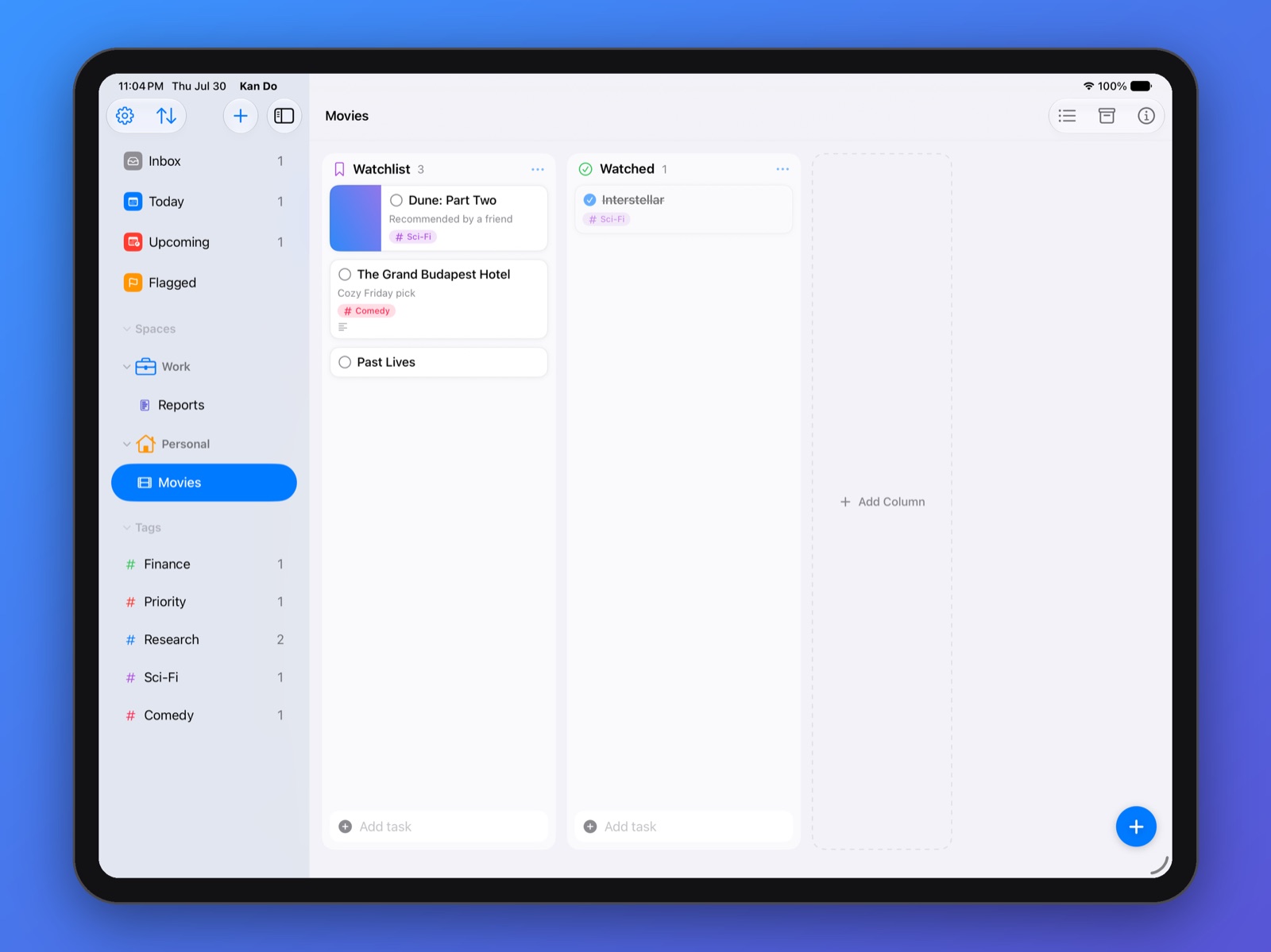
Right-click a card (Mac) or press and hold it (iPhone, iPad, Vision Pro) and choose Add Cover Image. The chooser offers:
- Photo Library
- Take Photo (devices with a camera)
- Choose File…
- Use Clipboard, which appears only when there's a picture on the clipboard
Once a card has a cover the item reads Change Cover Image. The same options are available from the Shortcuts Add Task and Edit Task actions (the Cover Image field) and from the AI connector.
Covers are downscaled when they're saved so they sync quickly. If a cover still pushes a task past iCloud's size limit, Kan Do shows Task Too Large to Sync with a Remove Cover Image button.
If a picture won't load, it's usually stored in iCloud Photos and not yet downloaded. Open it once in the Photos app, then try again, or use Choose File… with an exported copy.
Cover style, per project
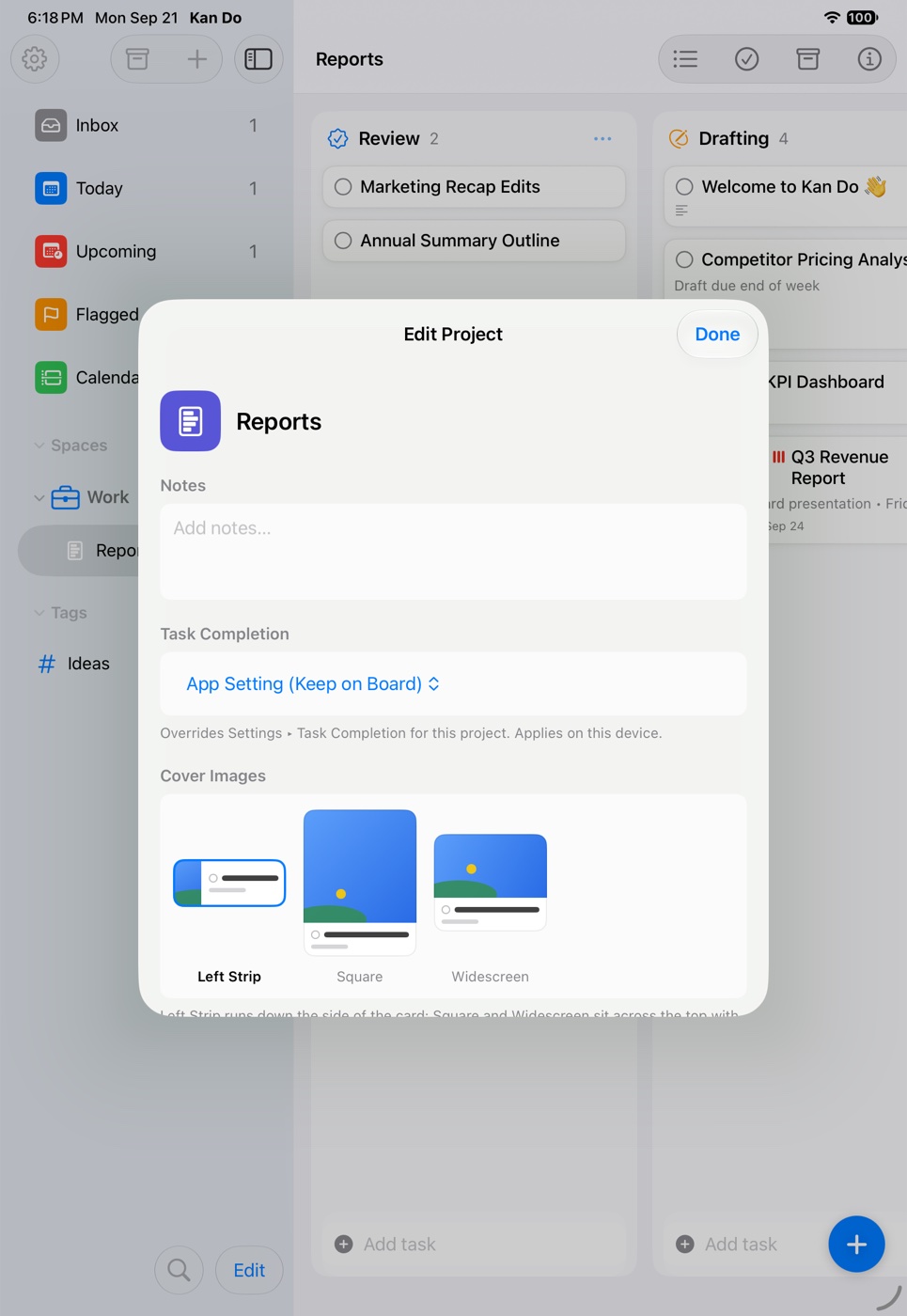
Open Project Settings and look for Cover Images:
| Style | Where it shows |
|---|---|
| Left Strip | A vertical strip down the left side of the card (the original look) |
| Square | A square image across the top of the card, with the task details below |
| Widescreen | A 16:9 image across the top, details below |
The chooser shows a small preview card of each. The style applies to every card on that board, on all your devices. Different projects can use different styles.
Covers aren't shown in List View, in smart lists, or on the Apple Watch. The Apple TV app shows them on its read-only boards.
Attachments
Adding attachments
Any of these puts a file into the task:
- The Attachments section in the task's details: Add Attachment ▸ Choose from Photos or Choose from Files.
- The Image and Attach File tools in the notes editor bar, which insert the file at the cursor.
- Paste a picture into the note. Screenshots, Copy Image from Safari or Preview, and an image file copied in Finder all work. On iPhone and iPad the Paste menu appears for a copied picture too.
- Drag a file or image into the note on the Mac or iPad.
- Drag an email out of Mail into a note on the Mac. It becomes a card showing the subject, clicking it opens the message, and a link to it is added to the task's Links.
- The share sheet on iPhone and iPad, which lists each shared item. Files larger than 25 MB are refused with a note saying so.
- The Photos and Attachments fields of the Shortcuts Add Task action.
How attachments look in the note
Attachments appear as cards in the note by default. Settings ▸ Appearance ▸ Images in Notes has two choices:
- Cards: a compact card with the file name and a thumbnail.
- Larger Previews: pictures are shown in the note itself.
With Larger Previews on, right-click (Mac) or press and hold (iPhone, iPad) a picture and choose Small Preview (a third of the note's width) or Large Preview (the full width of the text). The choice is saved with the note, so every device shows it the same way.
The attachment menu
Right-click or press and hold an attachment for Open, Share…, Small Preview / Large Preview (when Larger Previews is on), and Remove Attachment. The Attachments section in the details has Open and Remove Attachment per item.
Drawings
On iPad and on an open iPhone Duo, the Drawing tool in the editor bar opens a canvas. The drawing is saved as an image attachment in the note, and tapping it reopens the canvas for more edits. On iPhone (closed) the same slot in the formatting panel holds Print Note instead.
Exporting attachments
Export Attachments… in a task's context menu writes the task's cover image and note attachments out of Kan Do. On the Mac it asks for a folder; on iPhone, iPad, and Vision Pro it opens the share sheet. Select several tasks and the export prefixes each file with its task's name. A task with nothing to export says so.
A project export (.kandoproj) also includes each task's cover image and attachments. See Import and Export.
Sync and storage
Covers and attachments sync through iCloud like everything else, and count toward your iCloud storage. They're stored inside Kan Do's database, so deleting a task deletes its attachments, and archiving keeps them.
Covers are for recognition, attachments are for reference. A screenshot of the thing you're working on makes a great cover; the actual spreadsheet belongs in the note.