Settings
Appearance and Themes
Light and dark, the four themes, Multicolor vs. Single Color, the App Icon picker, sidebar options, and what opens at launch.
Settings ▸ Appearance is the first tab in Settings. It's split into General, Theme, Color Mode, Sidebar Smart Lists, and Sidebar Order.
Light and dark
Appearance: System, Light, or Dark. System follows your device. On Vision Pro the window and panes are opaque and scheme-aware, so Light and Dark change the window rather than leaving dark glass.
Themes
Four preset themes set the app's overall palette:
- Multicolor
- Ocean
- Forest
- Sunset
Each shows as a preview card. Tap one to apply it.
Color mode
Colors: Multicolor or Single Color.
- Multicolor lets each space, project, and tag keep its own color, which you set in their editors.
- Single Color shows a swatch grid and tints everything with one accent.
App Icon (iPhone and iPad)
Settings ▸ Appearance ▸ Theme ▸ App Icon opens a sheet with two sections:
| Section | Icons |
|---|---|
| Color Schemes | Classic, Blue, Midnight, Navy, Indigo, Plum, Slate. The Kan Do columns on different backgrounds |
| Designs | Check Gradient, Check Stripes, Check Neon, Board Blue, Board Neon, Board Teal, Board Pink |
The icon changes right away. Alternate icons are an iOS and iPadOS feature; the Mac, Vision Pro, and Apple TV apps use the standard icon.
General options
These live under Appearance ▸ General and are covered in more depth on their feature pages:
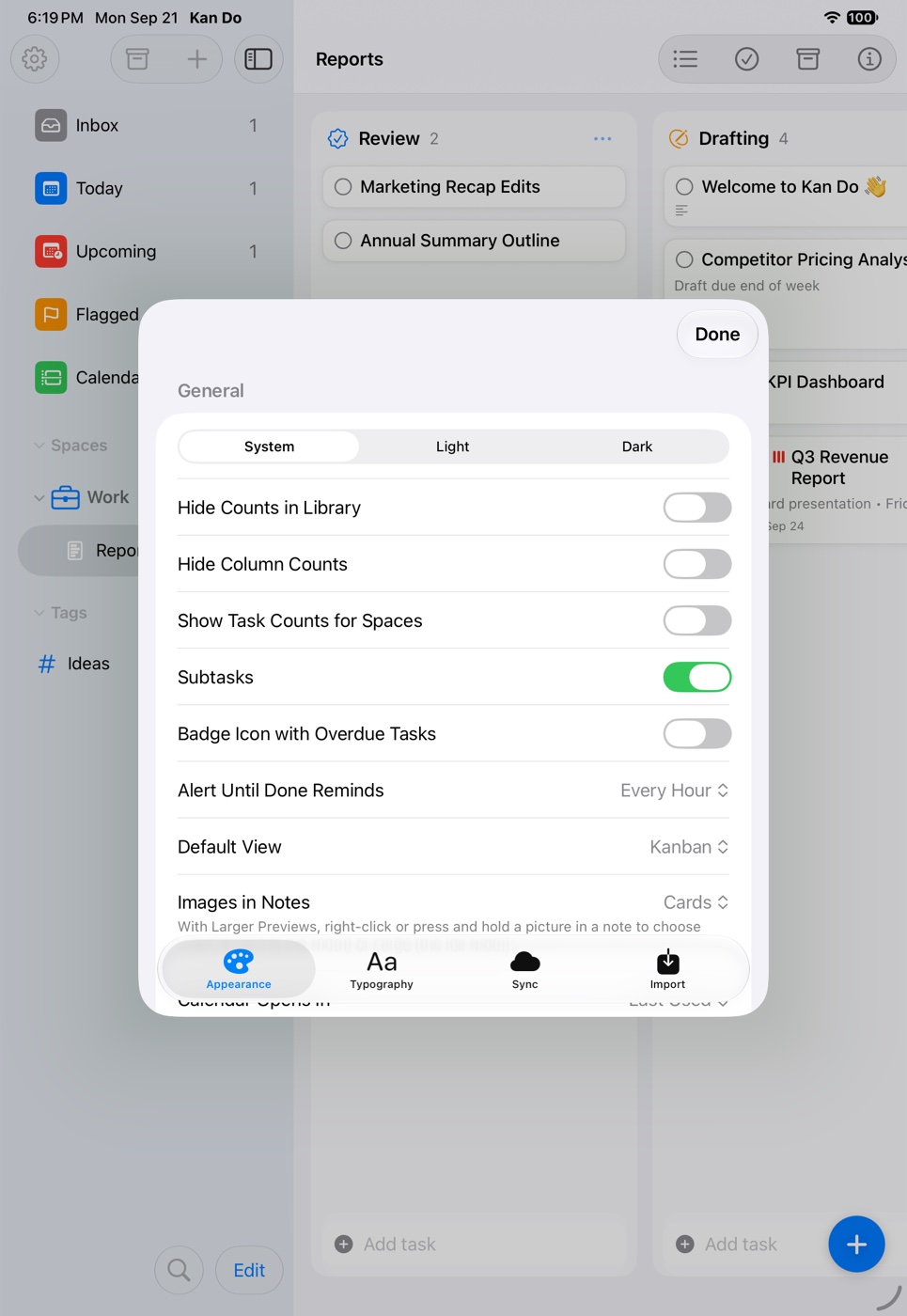
| Setting | What it does |
|---|---|
| Hide Counts in Library | Removes the counts next to sidebar lists and tags |
| Hide Column Counts | Removes the number in each column header |
| Show Task Counts for Spaces | Adds a total next to each space |
| Subtasks | Off hides subtasks everywhere; existing subtasks are kept |
| Badge Icon with Overdue Tasks | Puts the overdue count on the app icon |
| Alert Until Done Reminds | Default cadence: Every 30 Minutes, Every Hour, Every 3 Hours, Every Day |
| Default View | Kanban or List for projects you haven't toggled |
| Images in Notes | Cards or Larger Previews |
| Calendar Opens In | Last Used, Week, or Month |
| Open at Launch | Last Viewed, Main Navigation, a smart list, or a project |
| Task Completion | Keep on Board or Move to Archive |
| Tasks with + Button | Unsorted Column or First Column |
Open at Launch
- Last Viewed (the default) reopens exactly what you had open, including a tag or custom smart list.
- Main Navigation opens the sidebar with nothing selected, so you start from the overview. On iPhone that's the root screen.
- Any smart list, or any project shown as "Space ▸ Project".
Sidebar Smart Lists
Toggles for Inbox, Today, Upcoming, Flagged, and Calendar, plus the Smart Lists and Tags sections. Hide anything you don't use. Your tasks are unaffected.
Sidebar Order
The Spaces, Smart Lists, and Tags sections can be arranged in any order below the pinned lists. Use the up and down chevrons on each row.
Related
- Fonts, sizes, and layout sliders are on Typography and Layout.
- The complete list of every setting on every tab is in the Settings Reference.
If the sidebar feels busy, hide Calendar and Flagged, collapse Tags, and put Smart Lists above Spaces. The lists you actually live in end up at the top.