Smart Lists & Calendar
Calendar
The week and month views, dragging tasks between days, start-date chips, filtering, and what the calendar shows.
Calendar is the fifth pinned smart list. It lays your dated tasks out on a week or month grid, so you can see the shape of the week and move things around by dragging.
Kan Do's Calendar shows only Kan Do tasks. It doesn't read or write your system calendars, and Kan Do never adds events to the Calendar app.
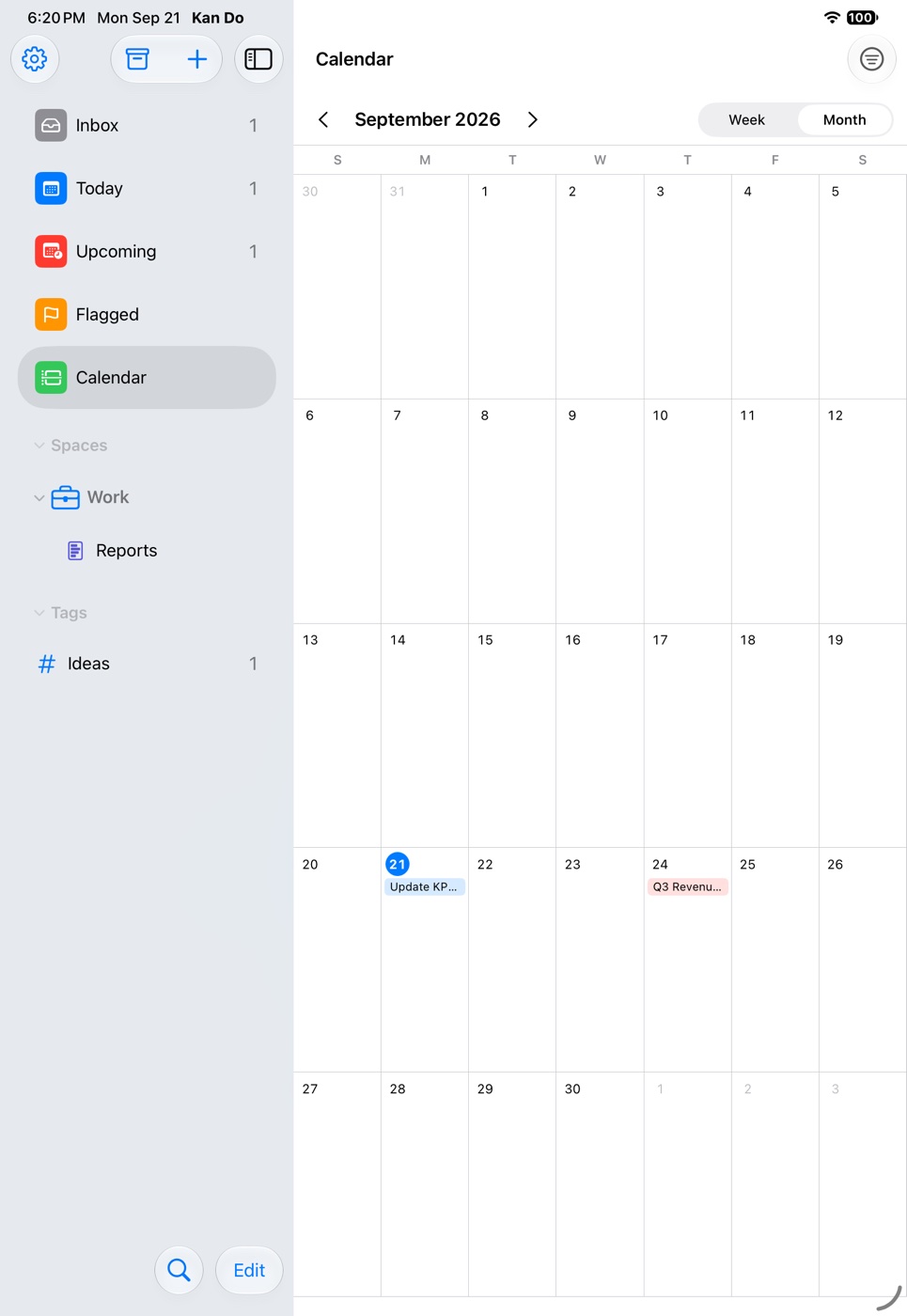
Week and month
A picker at the top switches between Week and Month. A Jump to today button returns to the current day. Settings ▸ Appearance ▸ Calendar Opens In chooses whether the calendar starts in Last Used, Week, or Month.
What a day shows
- Tasks appear on their due date.
- Tasks with a start date also appear on the start date, marked Starts.
- Tasks with a due time show the time on their tile, in red once it has passed.
- Dated subtasks appear as compact chips.
- When a day cell is wide enough, tasks show as their full board cards, cover image included. In narrower cells they're compact chips.
- A day with more than fits shows +N more. An empty day reads "Nothing due."
Rescheduling by dragging
Drag a task tile or chip to another day to change its due date. Drag a Starts chip to move the start date instead. The change syncs like any other edit.
Day and task menus
Right-click or press and hold a task on the calendar for Open Task, the due-date presets (Today, Tomorrow, Next Week, Pick Date & Time…), and Remove Due Date.
Filtering
The Filter menu offers All Tasks, a Tags section, and a Projects section. Pick a tag to show only tasks carrying it (a parent tag matches its nested tags), or a project to focus on one board's dates.
Opening the calendar quickly
- Settings ▸ Appearance ▸ Open at Launch ▸ Calendar opens it every time the app starts.
- The circular Calendar Lock Screen widget on iPhone and iPad opens Kan Do straight to the calendar.
- The link
kando://list/calendaropens it from anywhere.
Completed tasks
The calendar shows dated tasks whether or not they're complete, so it also works as a record of what got done and when.
Month view is a planning tool. Look at it on Sunday evening, drag anything crowded on Monday into the gaps later in the week, and Today will feel a lot more reasonable.