Settings
Typography and Layout
Fonts, the default text style, widget text size, and every slider that controls the size of sidebar items, cards, columns, and notes.
Settings ▸ Typography controls how text looks throughout Kan Do. Almost everything is a slider with a live value, and they're the same width on every platform.
Fonts
| Setting | Options |
|---|---|
| Text Font | System, Serif, Rounded |
| Code Font | SF Mono, Menlo, Courier, JetBrains Mono, JetBrains Mono Extra Light |
| Default Text Style | Title, Heading, Subheading, Body. The style a new note starts in |
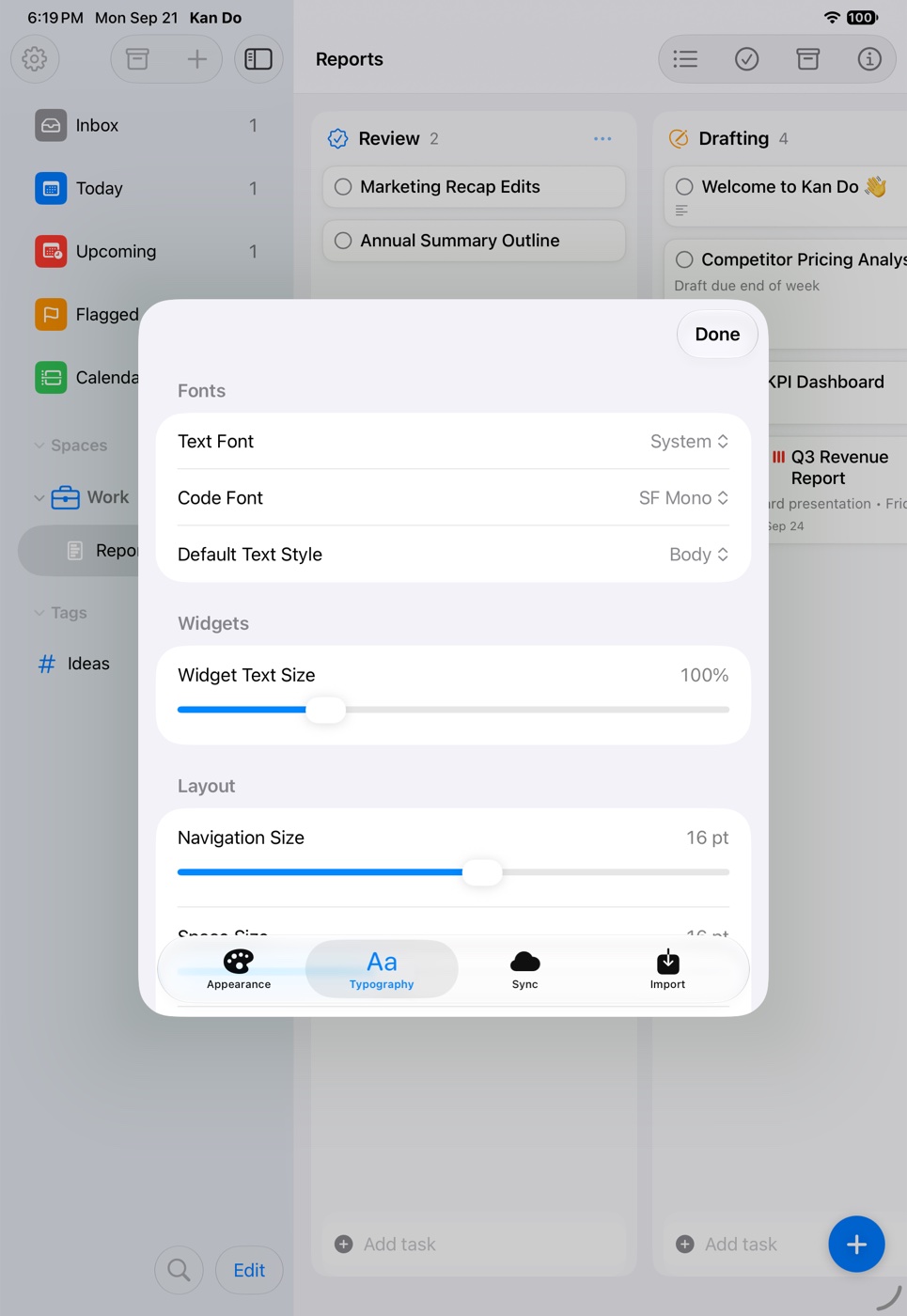
JetBrains Mono is bundled with the app, so it's available on every device. Changing the Default Text Style takes effect immediately, even in a note that's open.
Widgets
Widget Text Size: 80% to 160%. Widget text also follows your device's system text size, including the accessibility sizes, and this slider stacks on top of that. Each widget shows as many rows as your text size allows.
Layout sliders
Sidebar
| Slider | Range | What it sizes |
|---|---|---|
| Navigation Size | 11–20 pt | The pinned smart lists |
| Space Size | 11–24 pt | Space headers, text and icon together |
| Project Size | 11–24 pt | Project rows |
| Project Line Height | 0–12 pt | Extra space between project rows |
| Smart List Size | 11–24 pt | Custom smart list rows |
| Smart List Line Height | 0–12 pt | Space between them |
| Tag Size | 11–24 pt | Tag rows |
| Tag Line Height | 0–12 pt | Space between them |
Cards and columns
| Slider | Range | What it sizes |
|---|---|---|
| Note Card | 11–22 pt | The card title |
| Card Subtitle | 9–18 pt | The subtitle line |
| Card Icons | 9–18 pt | The small indicators on a card |
| Column Width | 220–480 pt | Board columns on Mac, iPad, and Vision Pro. iPhone keeps its stock layout |
| Column Icons | 12–36 pt | The symbol in each column header |
On the Mac, ⌘+ and ⌘− zoom the whole window between 0.6× and 1.8× on top of these settings. ⌘0 returns to actual size.
Notes
| Slider | Range | What it sizes |
|---|---|---|
| Header Size | 16–34 pt | Title, Heading, and Subheading lines |
| Note Size | 12–28 pt | Body text |
| Code Size | Match Note, or 9–28 pt | Inline code and code blocks |
| Line Height | 1.00×–2.00× | Space between lines |
| Line Width | Full, or 300–1000 pt | Maximum width of the text column |
| Paragraph Spacing | 0–24 pt | Space between paragraphs |
| Paragraph Indent | 0–48 pt | First-line indent |
Font and size changes apply to notes when you reopen them. Restore Editor Defaults at the bottom puts every note slider back.
Where these settings live
Typography settings are per device. Your Mac and your iPhone can have different sizes, which is usually what you want.
Two changes make the biggest difference on a Mac: set Column Width to around 300 for more columns on screen, and set Line Width to about 640 so long notes read like a document instead of stretching across the whole pane.