Tasks
The Notes Editor
Every formatting tool, the Markdown shortcuts that turn into formatting as you type, the keyboard bar on iPhone and iPad, links, code blocks, colors, and full-screen writing.
Every task has a rich-text note under its details. It's a proper editor, in the spirit of Bear: you type Markdown shortcuts and they turn into real formatting as you go, and there's a toolbar for everything else.
The formatting bar
On the Mac, iPad, and Vision Pro the bar sits above the note. On iPhone it sits above the keyboard (see below). Left to right it holds:
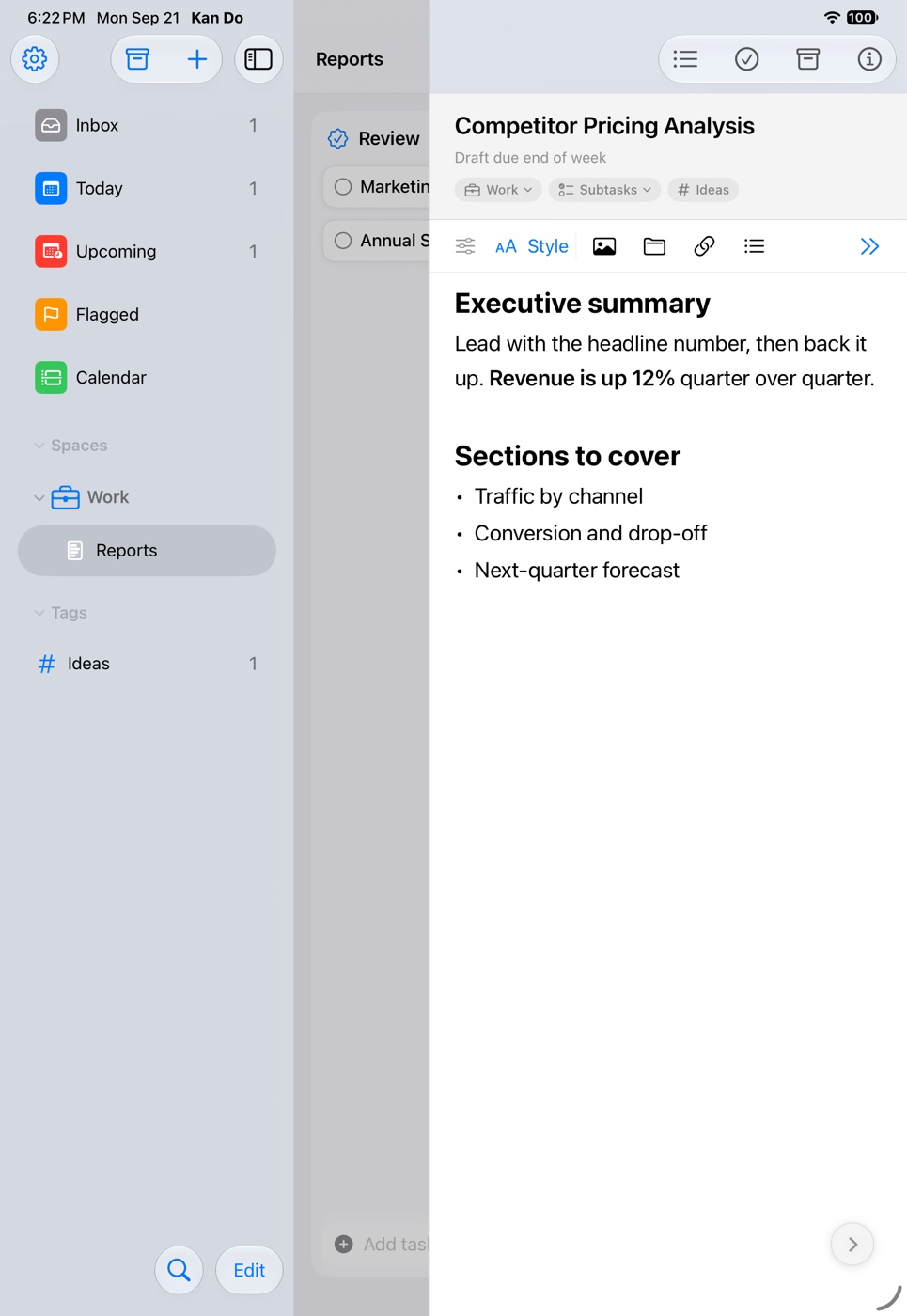
- Task details (the sliders icon) shows or hides the details section
- Style menu: Title, Heading, Subheading, Body
- Image, Attach File, Link, and list tools
- More tools (the double chevron), which opens the rest
The tools, with their names as they appear in the app:
| Tool | What it does |
|---|---|
| Bulleted List | Bullet points. Return continues the list; Return on an empty item ends it |
| Numbered List | Numbers, always counting from 1, aligned past item 9 |
| To-Do | A tappable checkbox. Checked boxes fill with your accent color |
| Block Quote | An indented quote with a colored bar |
| Separator | A horizontal dividing line |
| Bold, Italic, Underline, Strikethrough | Character styles |
| Text Color | Default, Red, Orange, Yellow, Green, Blue, Purple, Pink, Gray |
| Highlight | None, Yellow, Green, Blue, Pink, Orange, Purple |
| Code | Inline monospaced code in a snug rounded box |
| Code Block | A monospaced block on a rounded slab, with Plain, Bash, Python, Swift, JSON, or YAML highlighting |
| Link | Turns the selection into a link, or inserts one |
| Image | Inserts a picture from Photos or Files |
| Attach File | Inserts any file |
| Drawing | Opens a drawing canvas (iPad and open iPhone Duo) |
| Print Note | Prints the note (⇧⌘P on the Mac) |
| Write full screen | Expands the note to fill the window (regular width) |
In the More tools menu, Bold, Italic, Underline, Strikethrough, and Code are checkable toggles that keep the menu open, so you can apply bold and underline to one selection in a single visit. Choosing a style on an empty line applies to whatever you type next.
Markdown shortcuts
Type these and the syntax disappears, leaving the formatting:
| Type | Get |
|---|---|
# at the start of a line | Title |
## | Heading |
### | Subheading |
- , * , or + | Bulleted list |
1. or 1) | Numbered list |
> | Block quote |
**bold** | bold |
*italic* | italic |
`code` | inline code |
~~struck~~ | strikethrough |
[text](https://…) | a link |
*** alone on a line | a separator |
Web addresses and email addresses become links as you type or paste them.
Kan Do doesn't import or export .md files. The Markdown shortcuts are a typing convenience, and the note is stored as rich text that syncs everywhere.
Headings and the default style
Pressing Return at the end of a Title, Heading, or Subheading line starts the next line in Body. Settings ▸ Typography ▸ Default Text Style chooses the style a new note starts in: Body, Title, Heading, or Subheading. Changing it takes effect immediately, even in an open note.
Lists and checkboxes
- Return continues a list. Backspace right after a bullet or number removes the whole marker.
- A to-do item starts with a capital letter as soon as you type after the checkbox, the way a sentence does.
- Delete on an empty to-do clears the box.
- Outdent and Indent (in the iPhone panel, or Tab and Shift-Tab on a hardware keyboard) nest list items.
Links
- Select text and use Link (⌘K on the Mac). The Add Link sheet asks for the address.
- A small pencil appears right after a link's last character. Tap it for the Edit Link card with Title and Address, Remove Link, Cancel, and Done.
- Pasting a link then pressing ⌘Z undoes it cleanly.
Code blocks
Code Block turns the current line into a block. Text typed right after stays in the block. Pick a language from the block's menu for live syntax highlighting: Plain, Bash, Python, Swift, JSON, or YAML. Settings ▸ Typography has a Code Font choice (SF Mono, Menlo, Courier, JetBrains Mono, JetBrains Mono Extra Light) and a Code Size slider whose leftmost stop reads Match Note.
Colors and highlights
Text Color applies to the selection, or to what you type next if nothing is selected. Default restores the normal color. Highlight offers six colors, and None removes a highlight. Both sync across your devices.
Images, files, and drawings
The Image and Attach File tools, paste, and drag all put files into the note as attachment cards. Settings ▸ Appearance ▸ Images in Notes switches between compact Cards and Larger Previews, and with previews on you can set each picture to Small Preview or Large Preview from its menu. Everything about attachments, including the 25 MB limit and dragging emails from Mail, is on Cover Images and Attachments.
The keyboard bar on iPhone and iPad
When the keyboard is up, a bar sits above it with Undo, Redo, the Aa formatting button, Link, and Hide Keyboard.
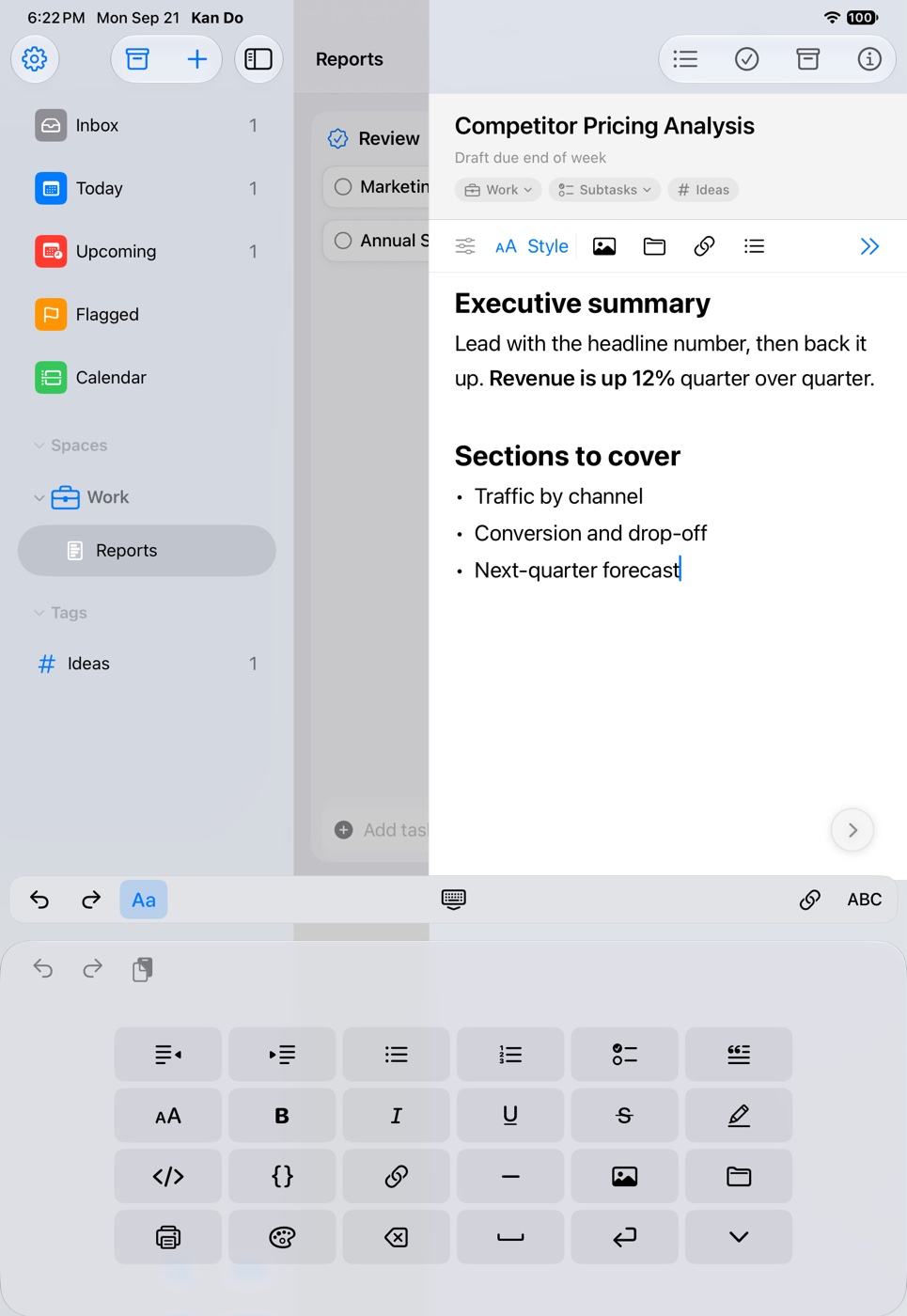
Tapping Aa swaps the keyboard for a panel of keys in four rows:
- Outdent, Indent, Bulleted List, Numbered List, To-Do, Block Quote
- Style menu, Bold, Italic, Underline, Strikethrough, Highlight
- Code, Code Block, Link, Separator, Image, Attach File
- Drawing (iPad) or Print Note (iPhone), Text Color, Delete, Space, Return, Hide Keyboard
ABC or the keyboard key brings the keyboard back. Panel keys behave exactly like the bar and the keyboard: Return continues a list, Delete clears a to-do box, and Bold and friends light up when the cursor is in that style.
The text cursor is the height of the text beside it, and over selected text the floating menu puts Copy before Cut so a stray tap doesn't remove anything.
Full-screen writing
On the Mac, iPad, Vision Pro, and an open iPhone Duo, Write full screen expands the note. On the Mac you can also double-click a card to open its note in a standalone Task window.
Typography
Settings ▸ Typography controls the note's Text Font (System, Serif, Rounded), Note Size, Header Size, Line Height, Line Width, Paragraph Spacing, and Paragraph Indent. Font and size changes apply when you reopen a note. See Typography and Layout.
Keyboard shortcuts (Mac and iPad with a keyboard)
| Shortcut | Action |
|---|---|
| ⌘B | Bold |
| ⌘I | Italic |
| ⌘U | Underline |
| ⇧⌘X | Strikethrough |
| ⌘K | Link |
| ⌥⇧⌘V | Paste and Match Style |
| ⇧⌘P | Print Note |
| Escape | Close the task pane |
If a note changed elsewhere
If the same note is edited on two devices before they sync, Kan Do shows Note Changed Elsewhere. Keep This Version replaces the synced note with what you see. Not Now keeps both: the synced note stays, and your version remains a local recovery draft. If a note can't be saved, Couldn't Save Note offers Keep Editing, Close Anyway, or Discard Changes.
Notes are the place for the whole thing: the brief, the checklist, the links, the screenshots. Keep the card's title short and put everything else here.